
There may be a time where you have to create a lab order for a Provider. LabCorp portal can have glitches and issues so sometimes it will fall on support to make sure something gets processed. Follow these steps to know what all needs to be done.
📚Resources Needed
🚀 Tips & Tricks
- Be sure to go over the LabCorp Tips, and review the LabCorp resource folder if you have any questions on how to navigate their portal.
- The Patient should already be in LabCorp from when we added the Patient into the EHR and all the other platforms.
- If a provider asks you to do this, you are the one responsible for adding the reference number and changing the order status to Pending.
- Google is your best friend. The naming conventions in the EHR and Labcorp don’t match exactly. You’ll need to google something like, “What is name labcorp uses for the lab xxx“
- We have a lot of labs already and most lab orders contain the same labs. Use previous lab orders as a reference to what was done if need be.
📘 Instructions
Here’s some of the main actions you will need to perform
- In the case a provider needs you to do this, they will always send you a message in the EHR and have an order already created that is sitting in draft status.
- Go to the order page and look for the lab order the provider messaged you about.
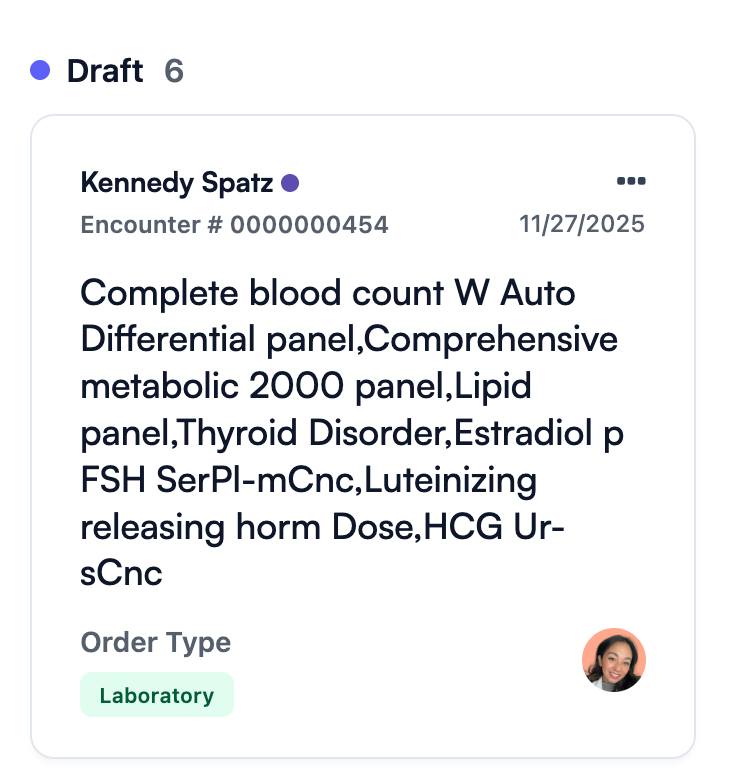
- Click on the Action icon > select Edit.
- Look at all the different labs that are part of the order.
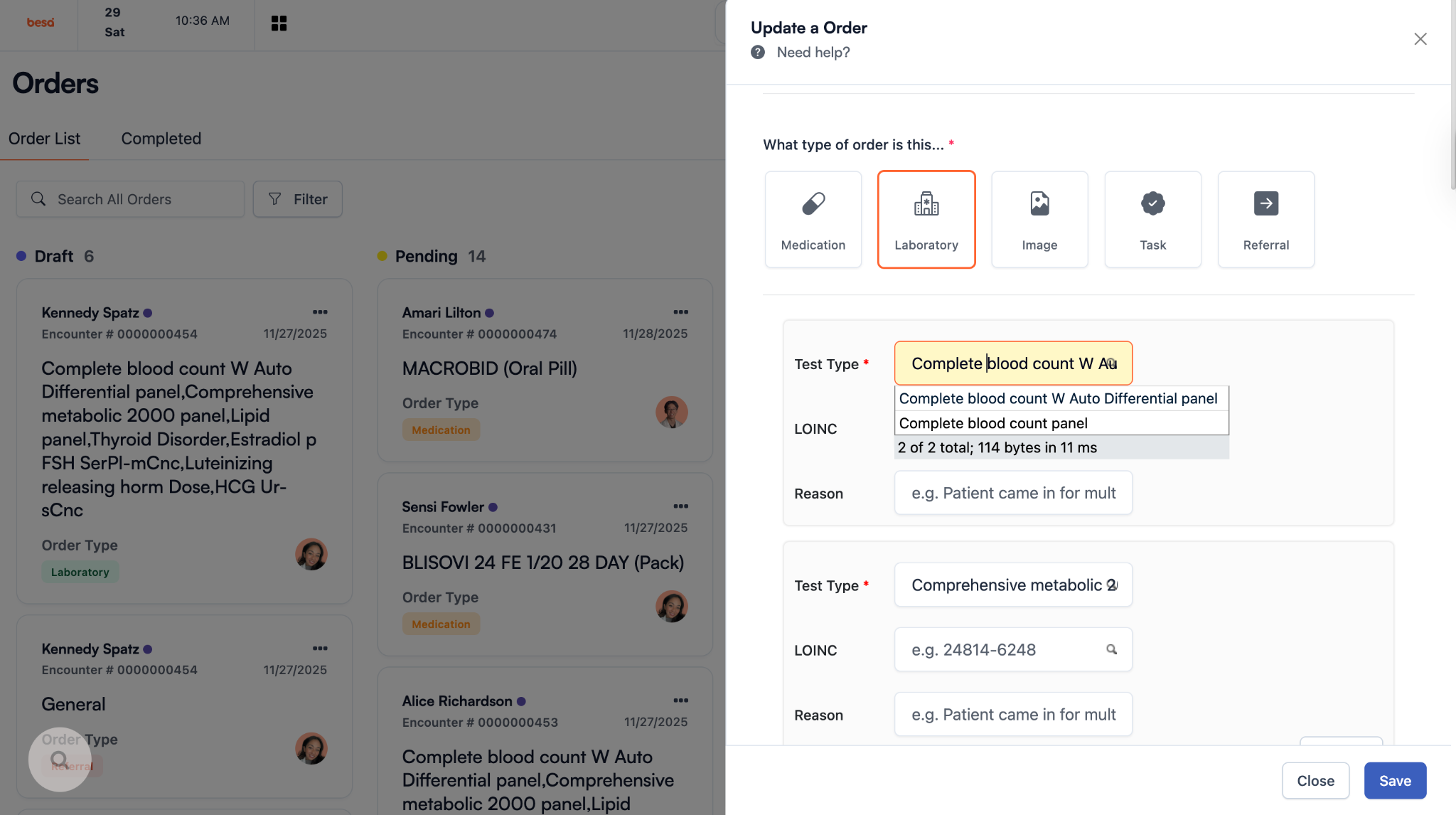
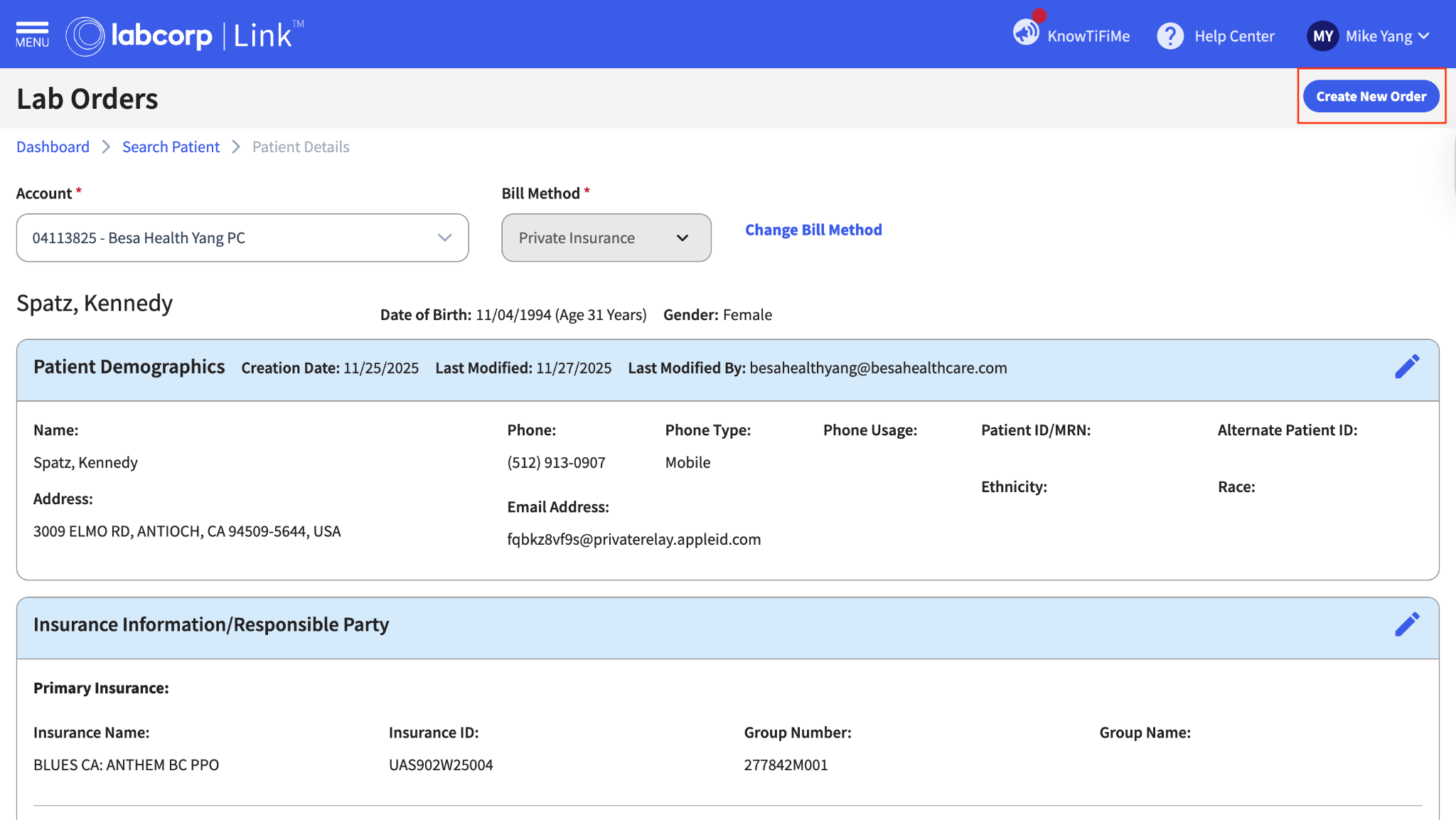
- Login to LabCorp to begin creating the order.
- After you login, click on the card labeled Lab Orders.
- Search for the Patient by their last name. When they show at the bottom of the page, click on the row to show the Patient details.
- From the Patient detail page, click Create New Order at the top right corner.
- Add all tests that are listed in the order in the EHR, here in LabCorp.
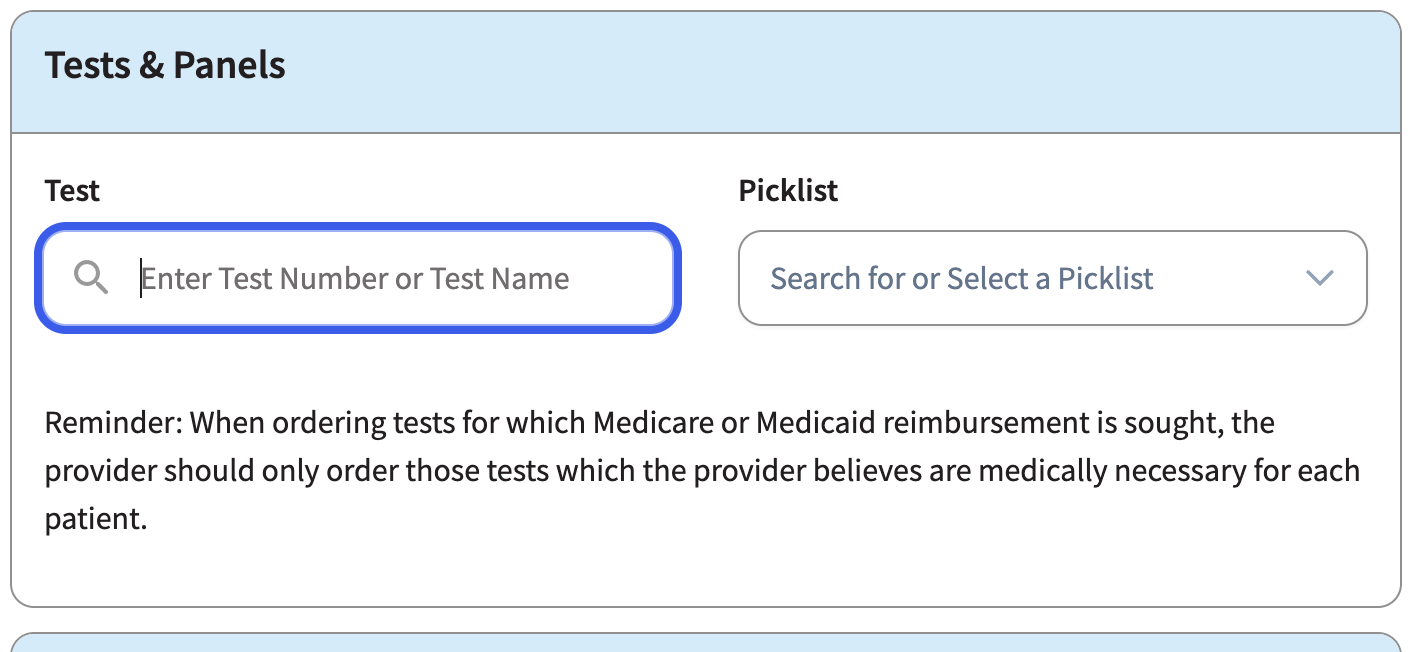
⚠️Since the naming conventions are not the same, for your first few, you will need to google what the name should be. I use the following format: “What is name labcorp uses for the lab xxx“ with the EHR name there at the end.
- After you add all of the labs, be sure to click the PSC box. This means that the blood or specimen is going to be collected at a LabCorp location and the Patient will need to walk in or create an appointment.

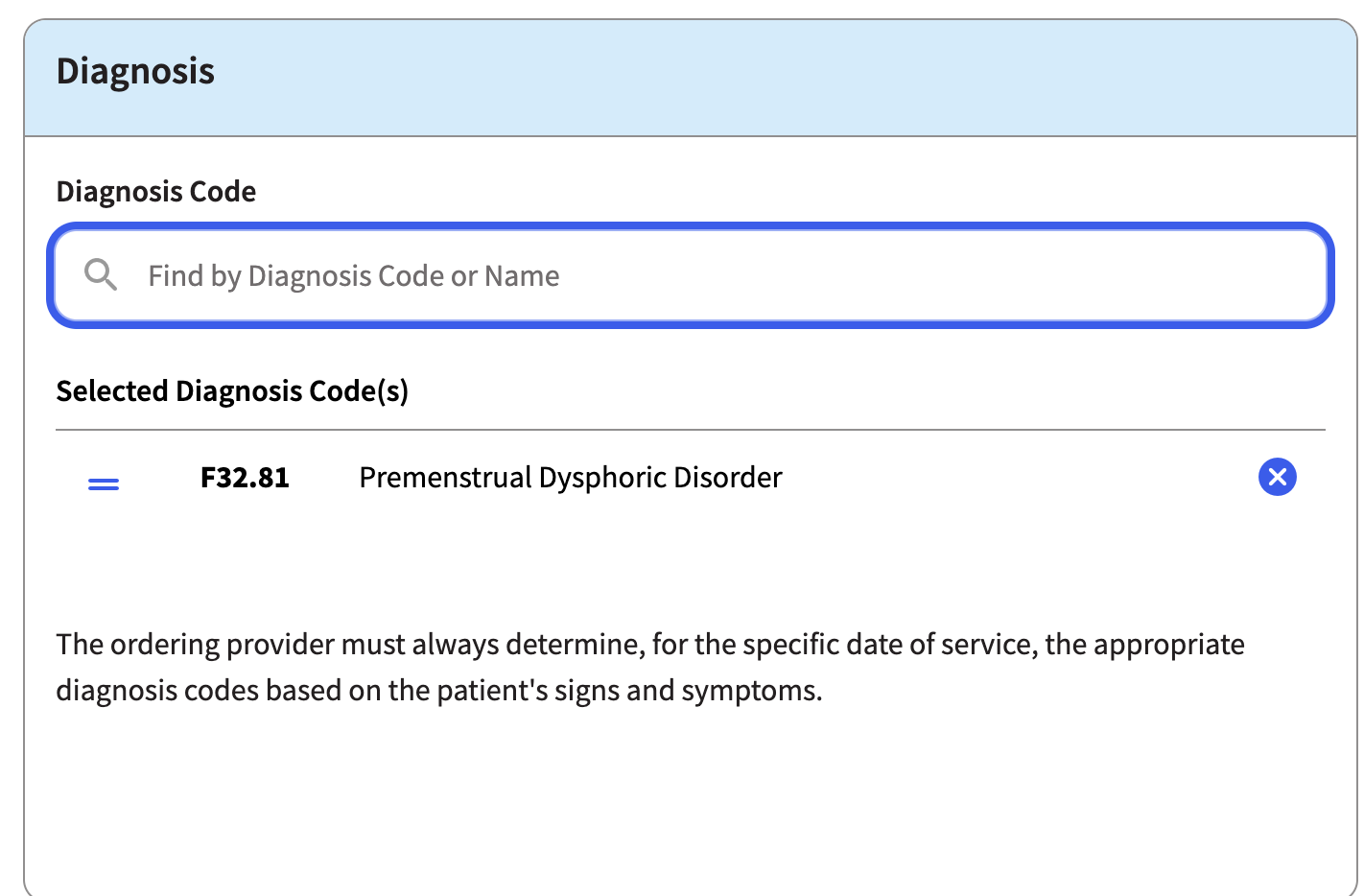
- Add the Diagnosis code. This should be there in the lab order in the EHR. If it is not, you can go to the specific encounter the lab was added for and use the Diagnosis codes listed there.
- Double check to make sure everything matches. If it does, scroll down and click Validate. LabCorp will then check the Patients insurance info and let you know if there’s any updates that are needed.
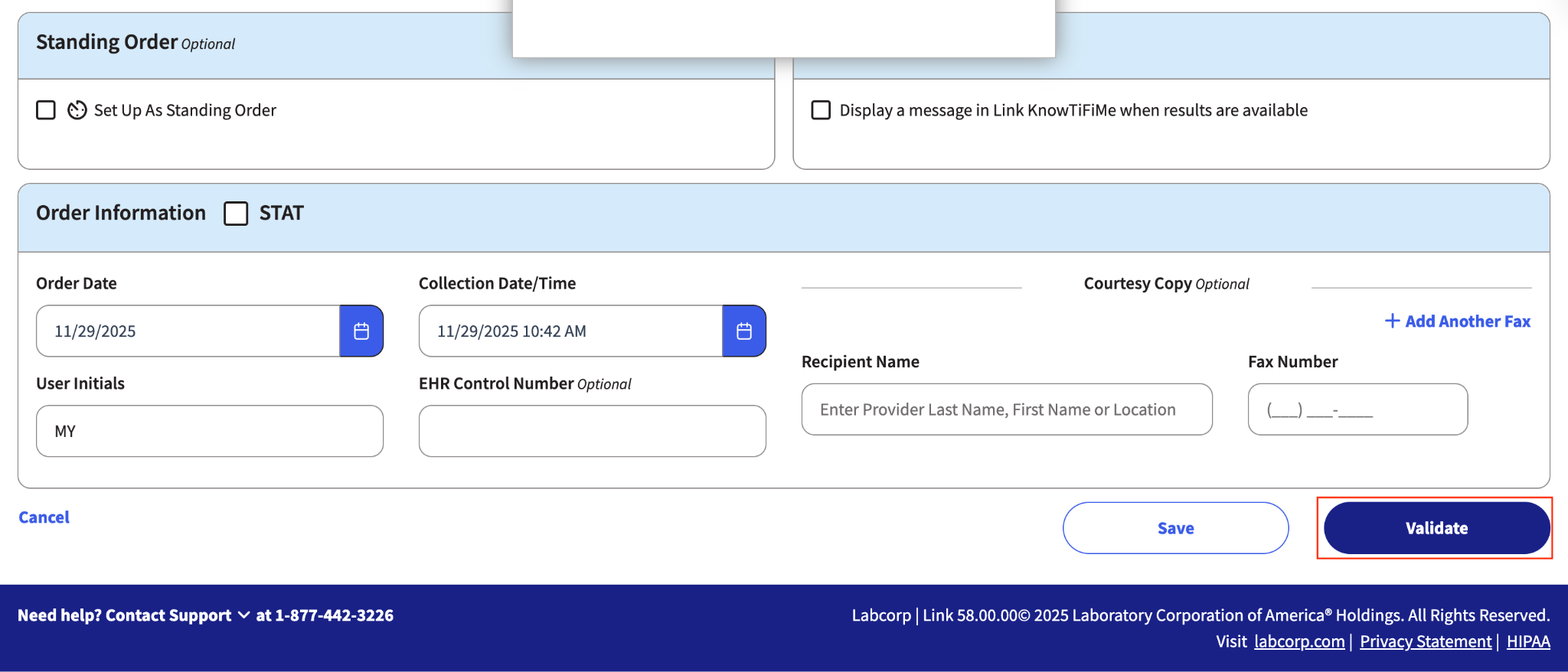
- Once the Validation has completed, you’ll be able to create the order.
- Once created, it will download. You will want to SAVE it and get the Requisition Number.
- Once the order has been created in LabCorp, you’ll go back to the EHR. Add the reference number in the notes, attach the document, and change the order status to Pending.
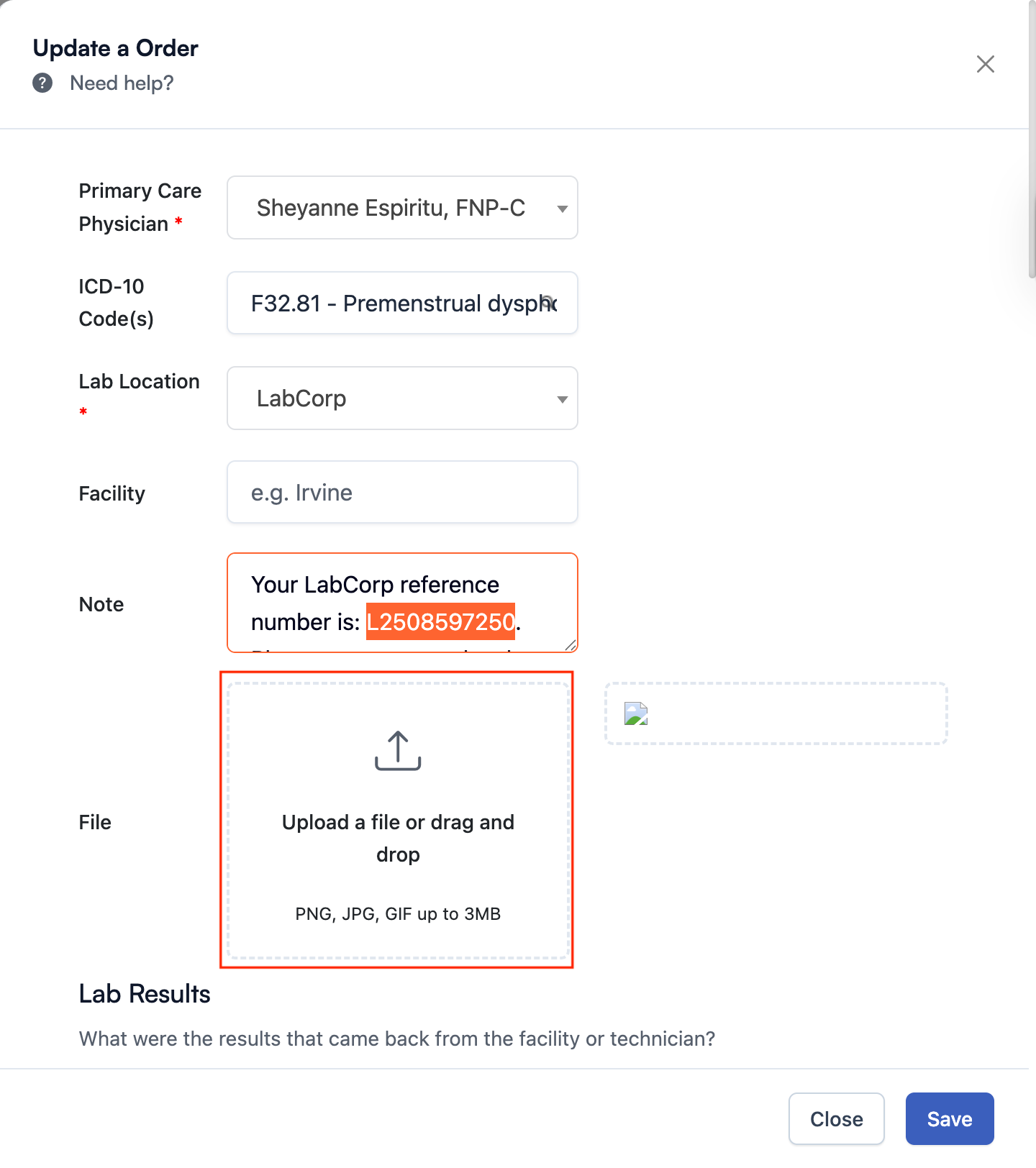
- Press Save and you’re good to go!
Here is a video to help you out.
Comments (0)