
Making sure the Patient is onboarded and in the app before their visit is extremely important. There are many automated actions and triggers that we do when they are in the app so if they are not in their account, they are going to get subpar care. This article is one of the most important articles that you will need to understand as it affects everything thereafter.
📚Resources Needed
🚀 Tips & Tricks
- You should have already completed the steps listed in Adding Patients from Zocdoc.
- You should have a clear understanding of the article, Getting in Contact with Patients.
- The number one goal of this is to get you to understand that WE NEED TO GET THE PATIENT IN THE APP. We need to make sure they are in the app and finish all onboarding steps so they can be seen and not have issues later on.
- Make proper notes for each and everything you’re doing regarding the Patient onboarding.
- You know if the Patient is in the app based on the color of their dot next to their name. Also, if they are in the app, you will see their name instead of ID number in the chat page.
📘 Instructions
These aren’t necessarily steps you will take, but rather the chronological order in the way the Patient onboarding will more than likely happen.
- The sooner we add the Patient to the EHR from when the appointment was booked, the better chance we have to get them to download the Patient app. This is by far the most pressing task. If you’re on shift and it has been more than 5 minutes, there is a problem!
- When creating a Patient in the EHR, they immediately receive an SMS and an email telling them to download the besa Health patient app.
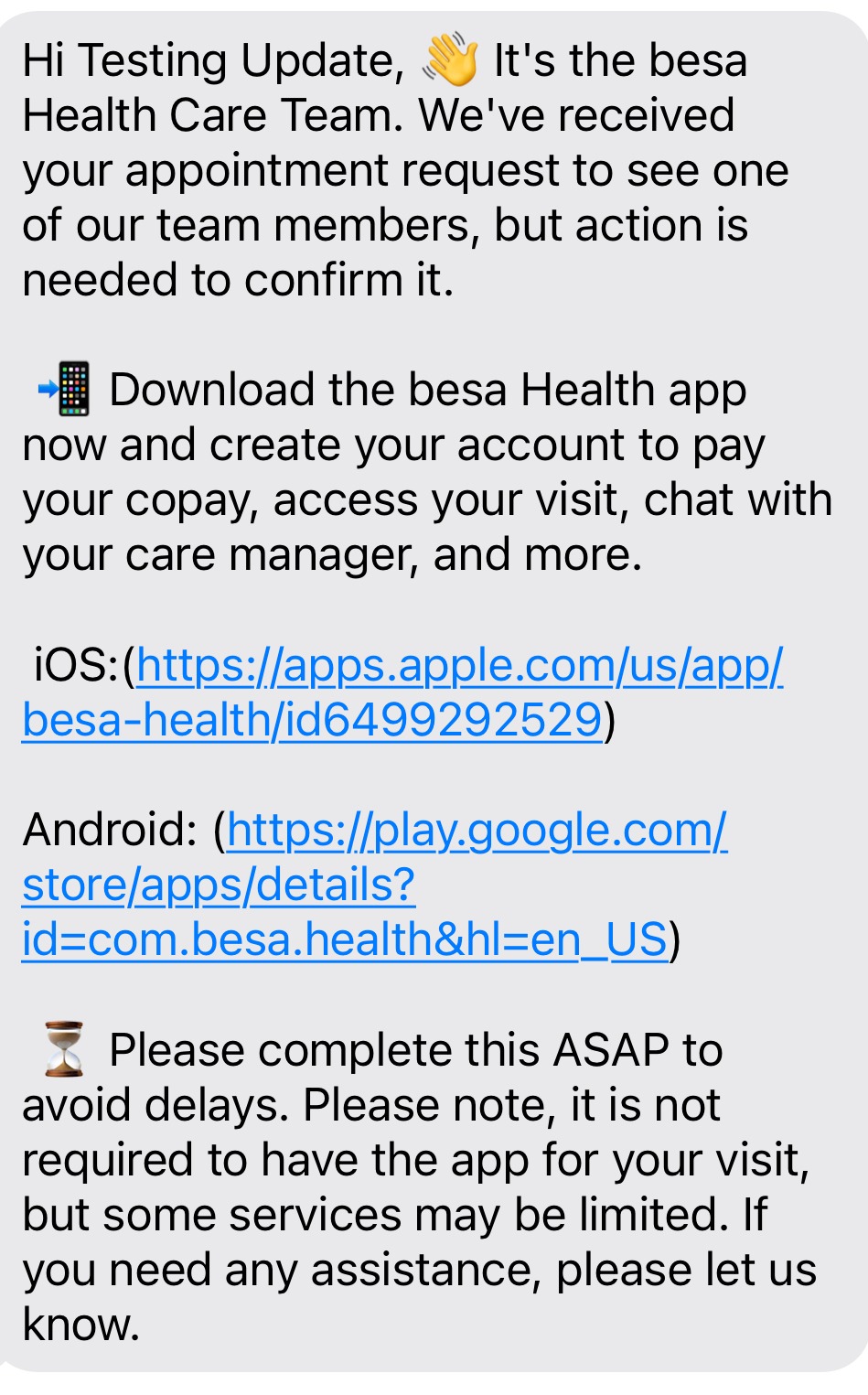
They will also receive a message 2 hours before their visit which says the following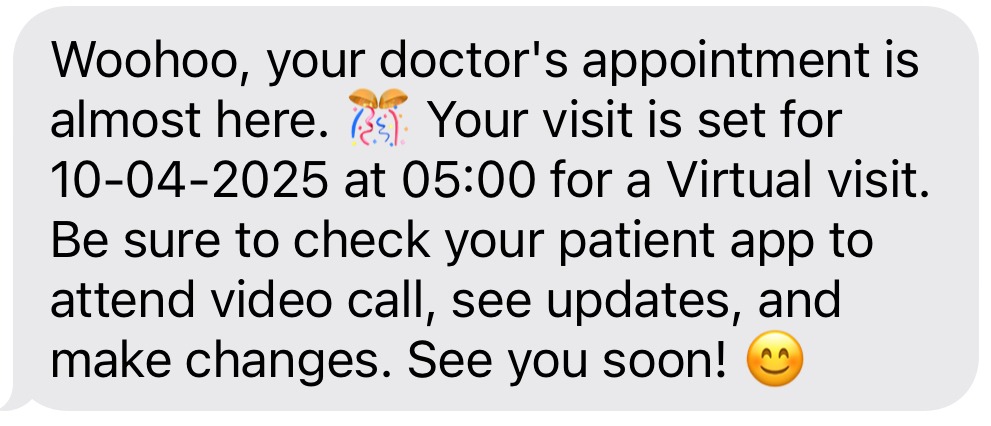
- Upon creating the Patient, once you finish all the steps, give the Patient a call using Google Voice and let them know the following:
- We have sent them an email and text to download the besa Health Patient app to finish onboarding.
- The Patient account is already created (It gets created when you add them to the system) so all they have to do is type in their Email or Phone Number to access their account.
- They will find an onboarding task on the homepage that they need to complete in order for the doctor to meet with them.
- If you have a copay or deductible you will need to pay that or put down a deposit until the insurance processes the claim.
- To access their appointment, they will just need to click on the appointment card and click the button, Enter Waiting Room. Check out this article.
- As soon as you're in, your care manager will create a chat with you. They are there to help you throughout your journey. They are your helping hand.
- We have sent them an email and text to download the besa Health Patient app to finish onboarding.
⚠️We need to say all these items when on the call with them. This way they have all the info they need. You should also have their demographics and benefits open so you can answer any questions for them such as how much is left on my deductible, how much is the copay, etc.
- If they didn’t answer, give them a call back another time. To know when to call them back depends on how soon the appointment is. I would say we should give them a call each day they have a pending appointment and are not in the app. Also, 1 hour before their appointment as mentioned in the Getting in Contact with Patients article.
⚠️Any time that you contact the Patient, or are waiting for a specific item, please be sure to properly document it in the notes section. 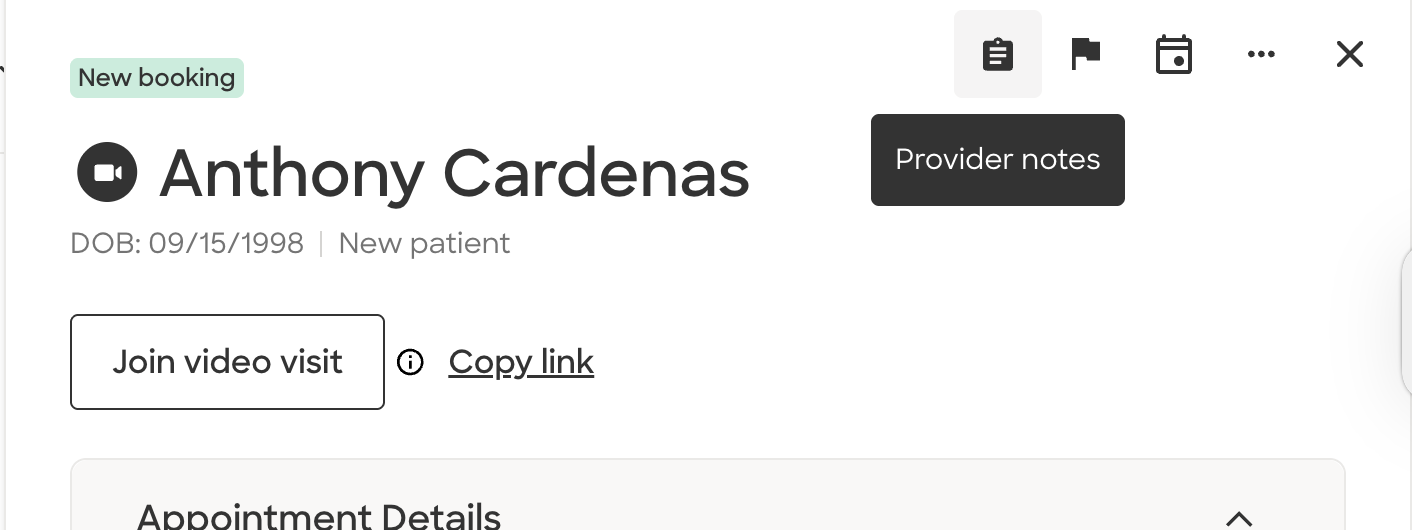
- Following the Getting in Contact with Patients article, 1 hour before the visit, if you see the Patient is still not in the besa Health app. Give them a call. If they don’t answer again, send them the following text:
Hello {Patient First Name}, 👋 It looks like we still need you to get setup in the besa Health app to see your doctor. Chat with your care team, schedule appointments and more with the besa Health app.
Just type in your email or phone number in login screen to access your account and appointment. Don’t forget to complete your intake task. ✅
iOS: https://apps.apple.com/us/app/besa-health/id6499292529
Android: https://play.google.com/store/apps/details?id=com.besa.health&hl=en
🚨Quick tip: You can also know that the Patient is in the app if you see a bunch of notifications for the Patient. This means that they logged in and are completing various steps which are updating their account.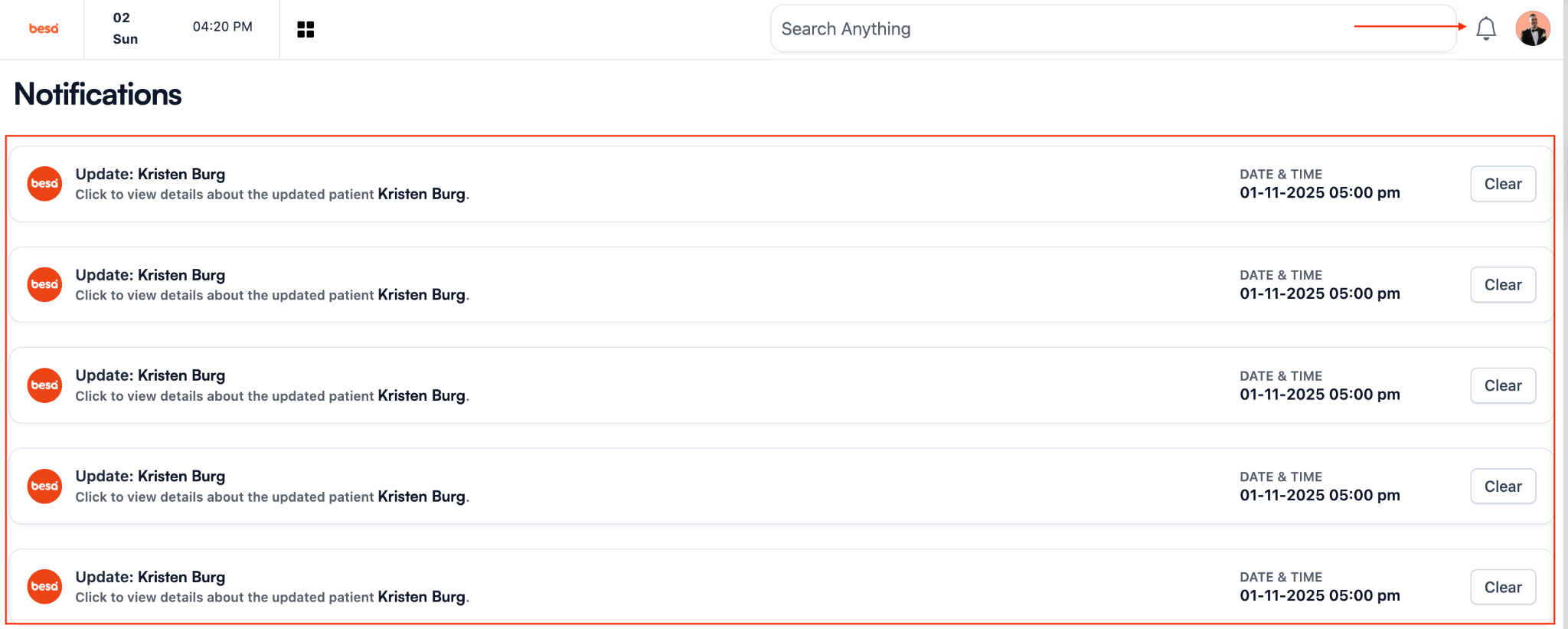
- If we are now 15-10 minutes before their appointment, you will need to send them their copay/deductible deposit invoice for payment.
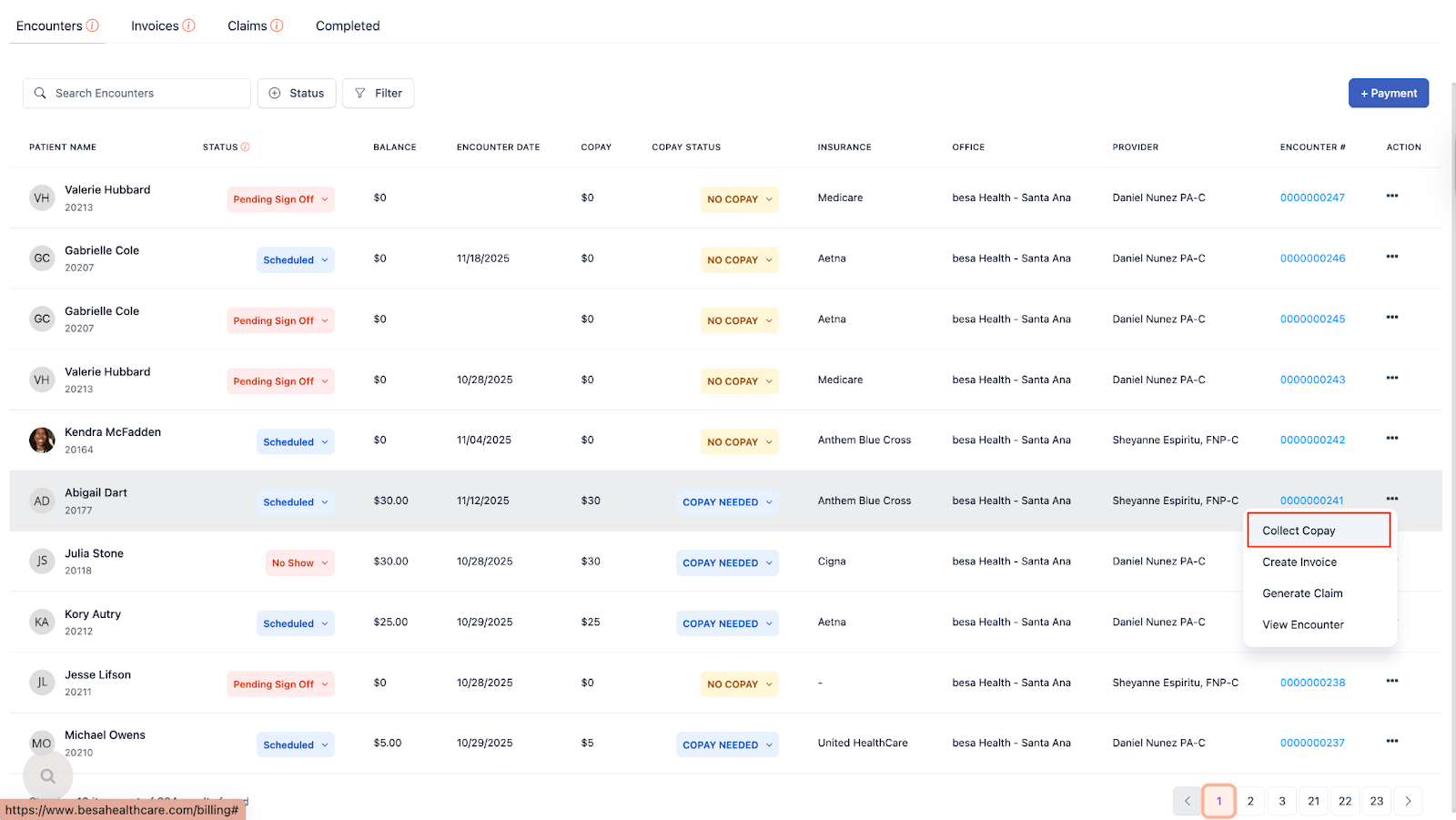
- To send the Patient their invoice, go to the billing page > find the Patient
- Click on the action icon and select Collect Copay.
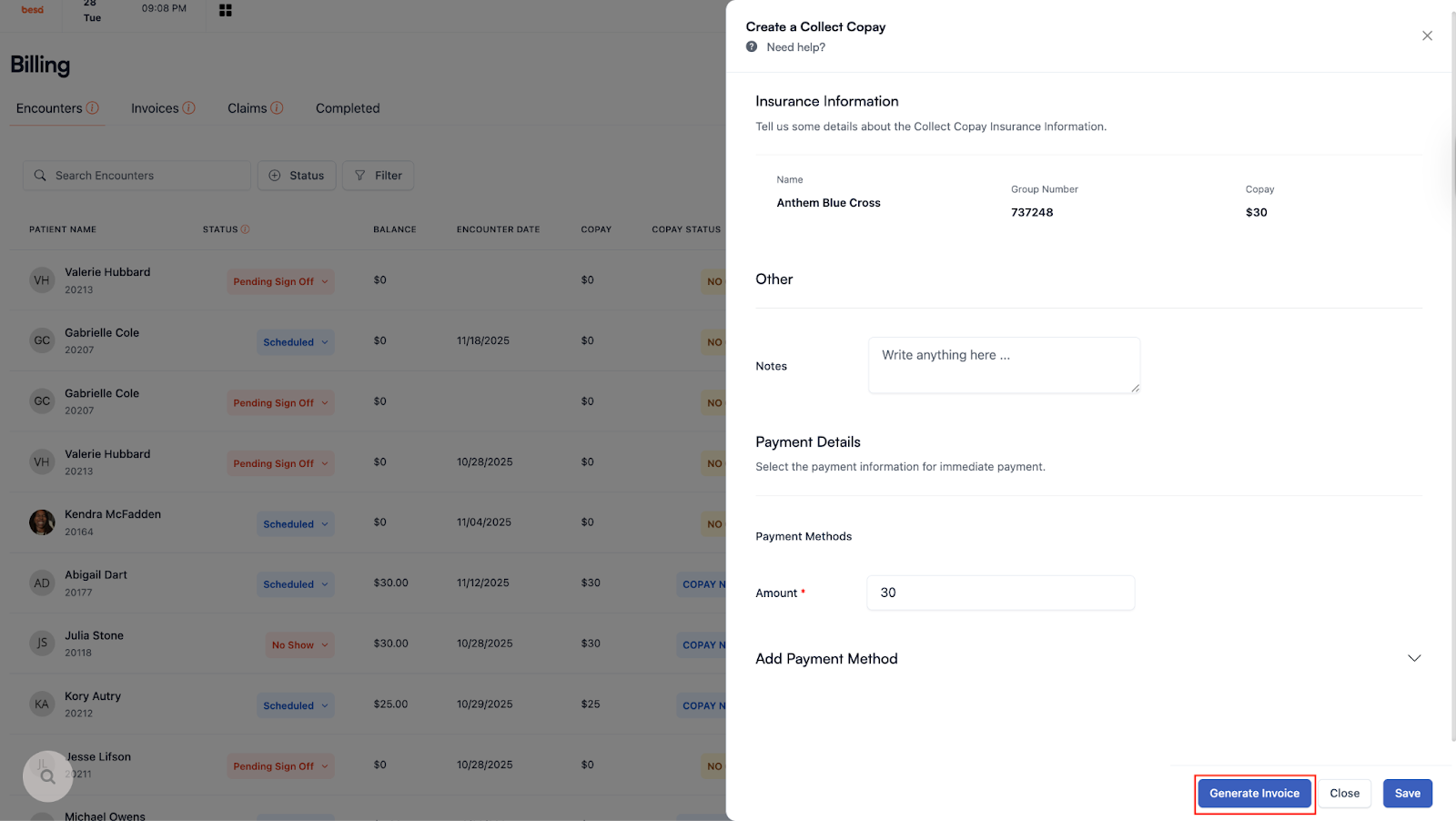
- At the bottom you’ll see a CTA button that says Generate Invoice. Click that. Your page will refresh once you do this.
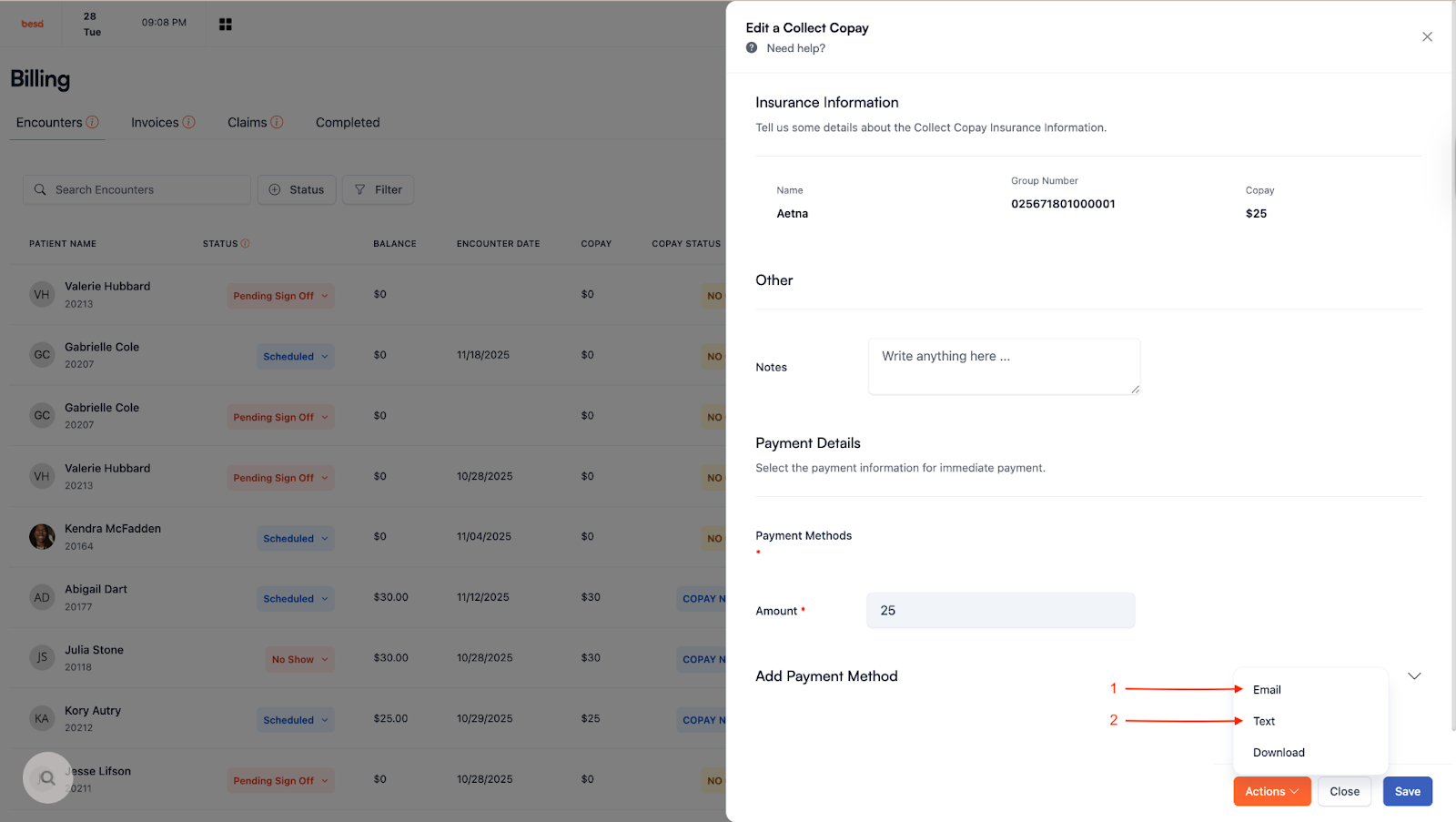
- Now you will see an Actions button. Click on that and select:
- Text
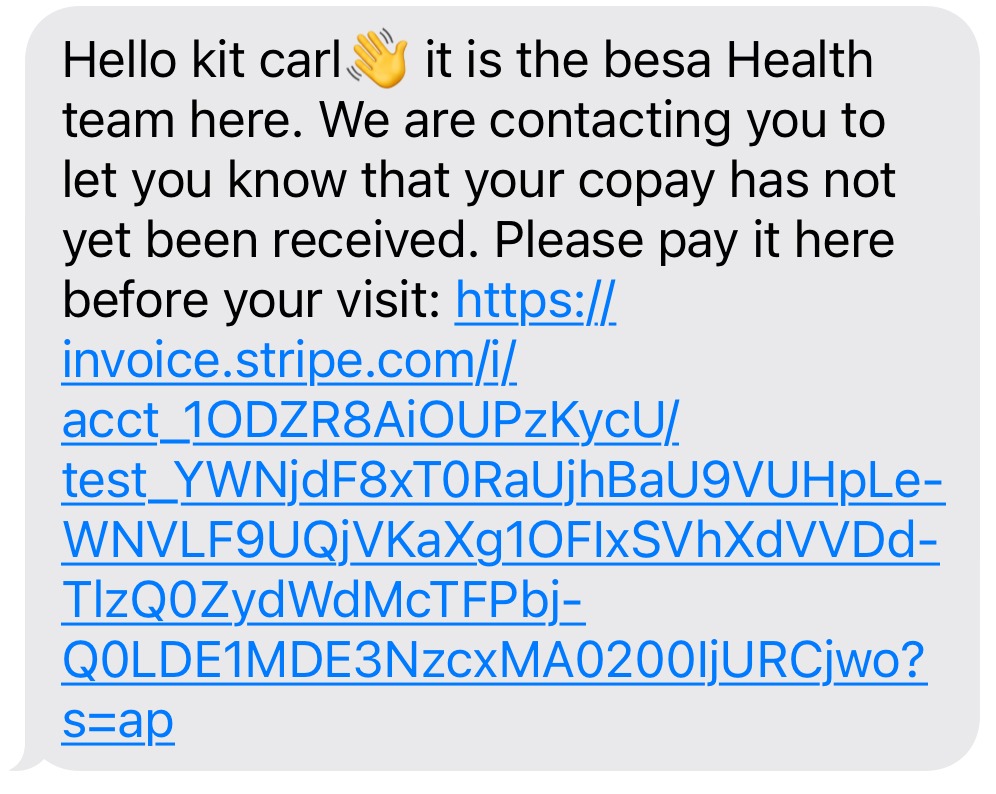
- This will automatically send a payment link to the Patient. Here’s an example of the text they get.
- Don’t forget to make property notes for each time you reach out to the Patient. This will help you to keep track of where we are and what we need to do next.
- Rinse and repeat! You will be doing this over and over. It is critical that you stay organized and pay close attention to the appointment times.
I will be working with the dev team to reduce the amount of times we need to reach out to the Patient and automate these processes. As we update these things, I will let you know and revise these articles.
Comments (0)