
Providers use this procedure to check automatic Chronic Care Management enrollment, review the care plan for accuracy, and explain the plan to the patient. Finish only when the reviewed plan and the patient discussion are documented in the correct chart.
📚 Resources Needed
Your authorized besa EHR account at www.besahealthcare.com.
The correct patient chart, current diagnoses, medications, allergies, results, and treatment instructions.
A care plan available for provider review and an appropriate opportunity to speak with the patient.
✅ Before You Start
Confirm the patient’s identity using the clinic’s normal checks.
Automatic CCM enrollment is triggered by two distinct qualifying chronic-condition categories. Two entries in the same category do not necessarily meet this requirement.
An Enrolled badge does not prove that a care plan has been drafted, reviewed, or approved.
Do not approve inaccurate information or use an assumed plan date. Follow clinic consent and documentation requirements.
🚀 Tips & Tricks
The system prepares the CCM workflow; the provider remains responsible for reviewing the plan and informing the patient.
Compare the plan with the current chart. Check conditions, medications and allergies, goals, planned actions, monitoring, referrals, and follow-up needs.
Support performs the assigned follow-up checks. Give clear instructions about what to check and when to bring a concern back to the provider.
📘 Instructions
1. Open The Correct Chart
Open Patients, find the patient, and open Review. Scroll to Chronic Care Management. Select Details. Check the Enrollment section and Qualifying Conditions. You should see the enrollment status and the conditions used by the system.

On the patient chart, Chronic Care Management contains + Log Time and Details.
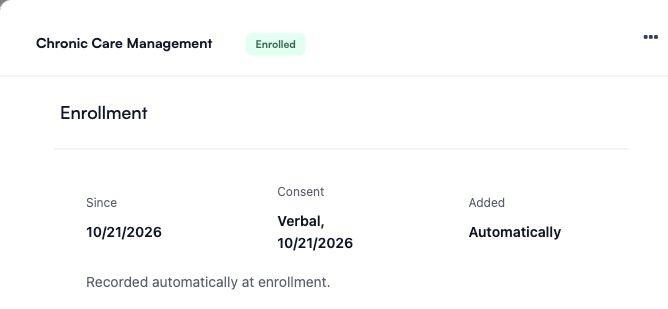
Automatic enrollment is shown in Details.
2. Check Whether The Care Plan Is Available
In Details, scroll to Care Plan. An existing active plan shows In effect, Version, In effect since, and Open PDF. If the section says No draft yet, the plan is not ready for review. Do not treat enrollment as a reviewed plan.
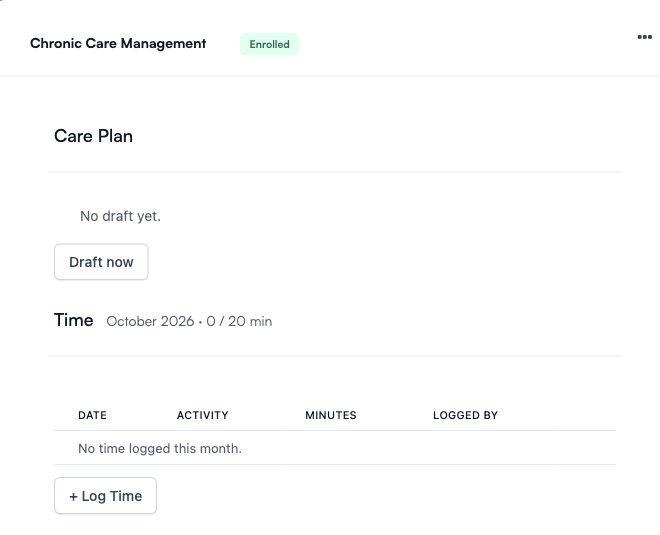
Enrollment and care-plan readiness are separate checks.
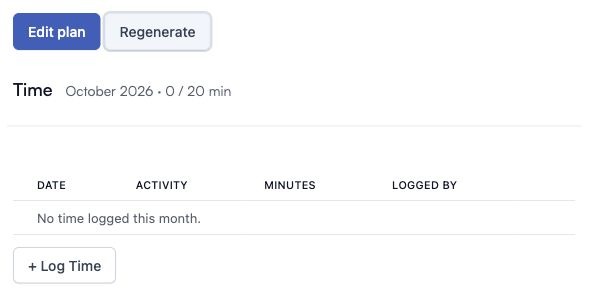
Scroll beneath the plan and select Edit plan. The Time section and + Log Time are below it.
3. Review And Correct The Plan
Read the plan, then scroll to its bottom and select Edit plan. Update the relevant fields in Problems, Measurable goals, Medications, Specialist coordination, Community and social needs, Prognosis, Interventions, Patient goals, and Review schedule. In Measurable goals, review Goal, Condition, Measure, Baseline, and Target date. Use + Add for another row or Remove for an unwanted row. Review every correction, then select Save plan. Select Cancel instead to discard unsaved edits. If Save plan is disabled, check whether you have made a change. Do not select Regenerate as a substitute for editing.
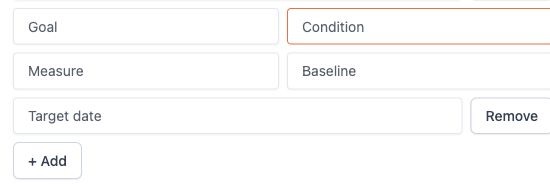
In Measurable goals, edit Goal, Condition, Measure, Baseline, and Target date. + Add inserts a row; Remove removes that row.

Select Save plan to save corrections, or Cancel to discard the unsaved edits.
4. Explain The Plan To The Patient
Discuss the conditions being managed, the plan’s goals, the patient’s next steps, and how the care team will follow up. Invite questions and confirm the patient understands what to do next. Document the discussion and consent according to clinic policy; an automatically displayed consent entry does not replace the actual conversation.
5. Confirm The Saved Plan And Handoff
Reopen Details and review Care Plan. Confirm the intended corrections in the plan and check Version and In effect since. Select Open PDF and verify that the saved document reflects the intended plan. Check provider sign-off separately; editing controls alone do not prove approval. Document the patient discussion and Support follow-up instructions, then verify the appropriate tasks are visible.
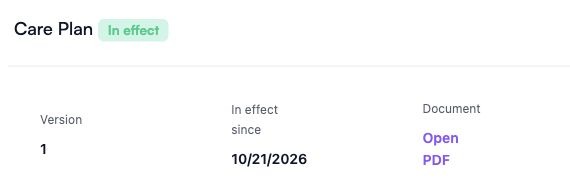
Check Care Plan status, Version, In effect since, and Open PDF after saving.
🛠️ Troubleshooting
No CCM card or badge. Check that the correct patient is open and that the chart contains distinct qualifying chronic-condition categories. Refresh once. If it remains missing, contact Support; do not add duplicate conditions simply to trigger enrollment.
Care Plan says No draft yet. Enrollment exists but there is no draft to review. Ask the authorized team to prepare the draft. Do not repeatedly request drafts when the result of an earlier request is unclear.
The plan, date, or consent is wrong. Stop before sign-off. Check the source chart and the actual patient discussion. Ask Support for help if the correction is not available; do not approve a plan with known errors.
Saved result or follow-up task is unclear. Reopen the chart and check the saved plan and task list before repeating any action. Send Support the screen name, time of the problem, exact error text, and a screenshot with patient identifiers and clinical details removed.
☑️ Final Completion Check
Correct patient and qualifying conditions reviewed.
Care plan checked for accuracy and required corrections completed.
Saved plan, provider sign-off, and established date verified.
Patient informed and discussion documented.
Support follow-up instructions and task handoff confirmed.
Comments (0)