
The CMS-1500 form is the standard form used when submitting claims via mail. Because some insurance companies are behind the times, or they require things that we do not have, we will need to send the insurance company a CMS-1500 form for them to process payment. Look below at how to complete this form, and please note that Medicare has different requirements than the other commercial insurance companies.
📚Resources Needed
🚀 Tips & Tricks
- Details Matter!
-
This is a great tool to better understand how the form needs to be filled out for Medicare. Please note, it is a little different than commercial insurance carriers.
- Watch the following video to know how to complete this form: CMS-1500 Form
- The Service Address for Medicare claims is: 3269 Spectrum Irvine, CA 92618
- Complete form in all CAPS
- Save as status Pending so I know to print it out and send to Noridian.
📘 Instructions
Make sure not to forget one of these steps.
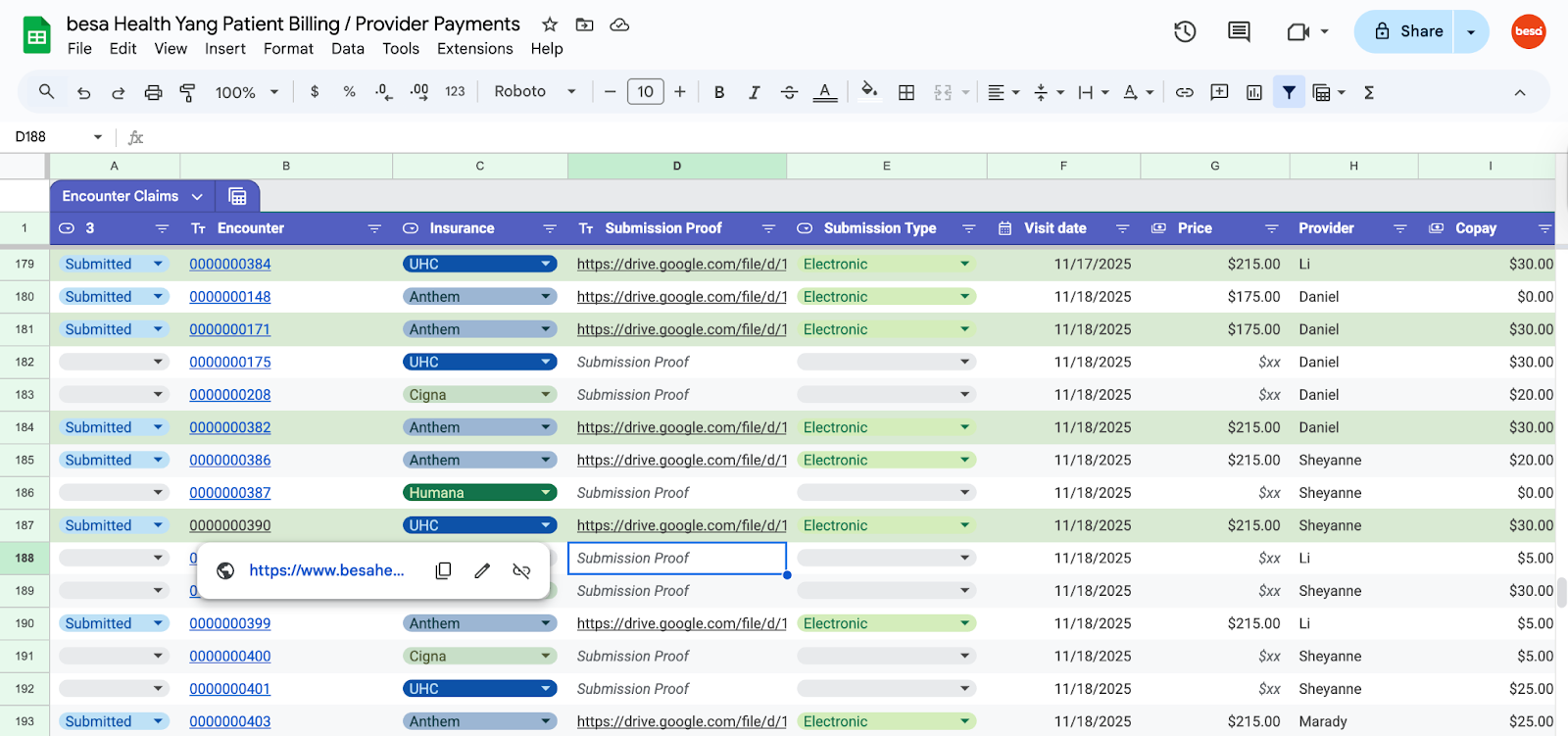
- Pull up the Patient Billing Page and look at what visits need claims submitted for that day.
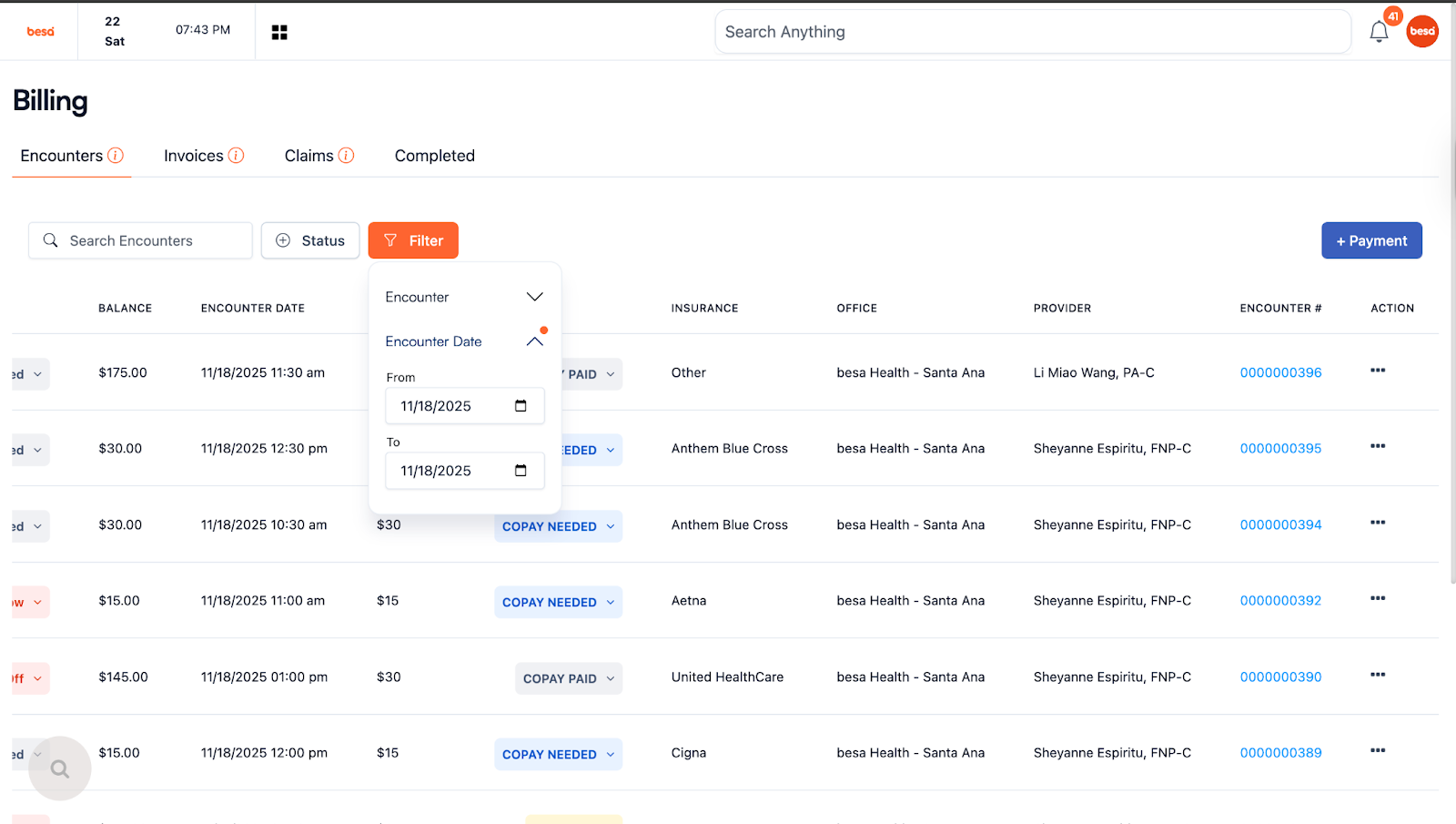
- Pull up the EHR Billing page and filter the results to the specific day you’re working on.
- Once you have all the information, pull up the CMS-1500 form.
- From the Patient billing spreadsheet, click on the encounter number and open the link to access the encounter note.
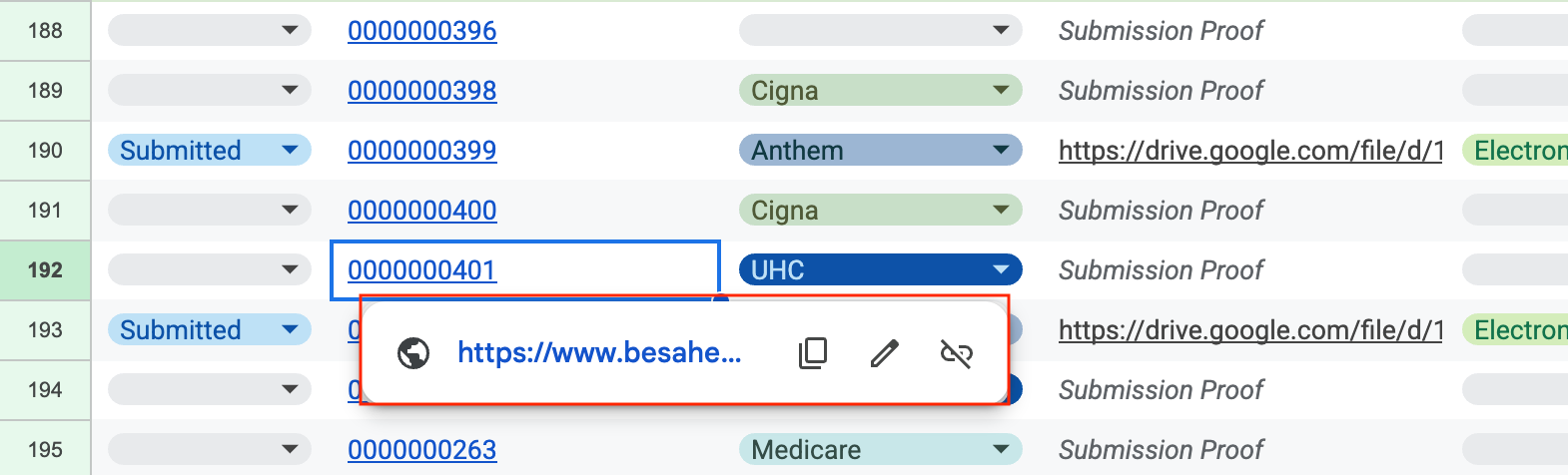
- You should now be able to see the encounter note with the dx codes there at the bottom of the canvas.
- From the EHR Billing page, click on the action icon in the far right of the row and select Generate Claim.
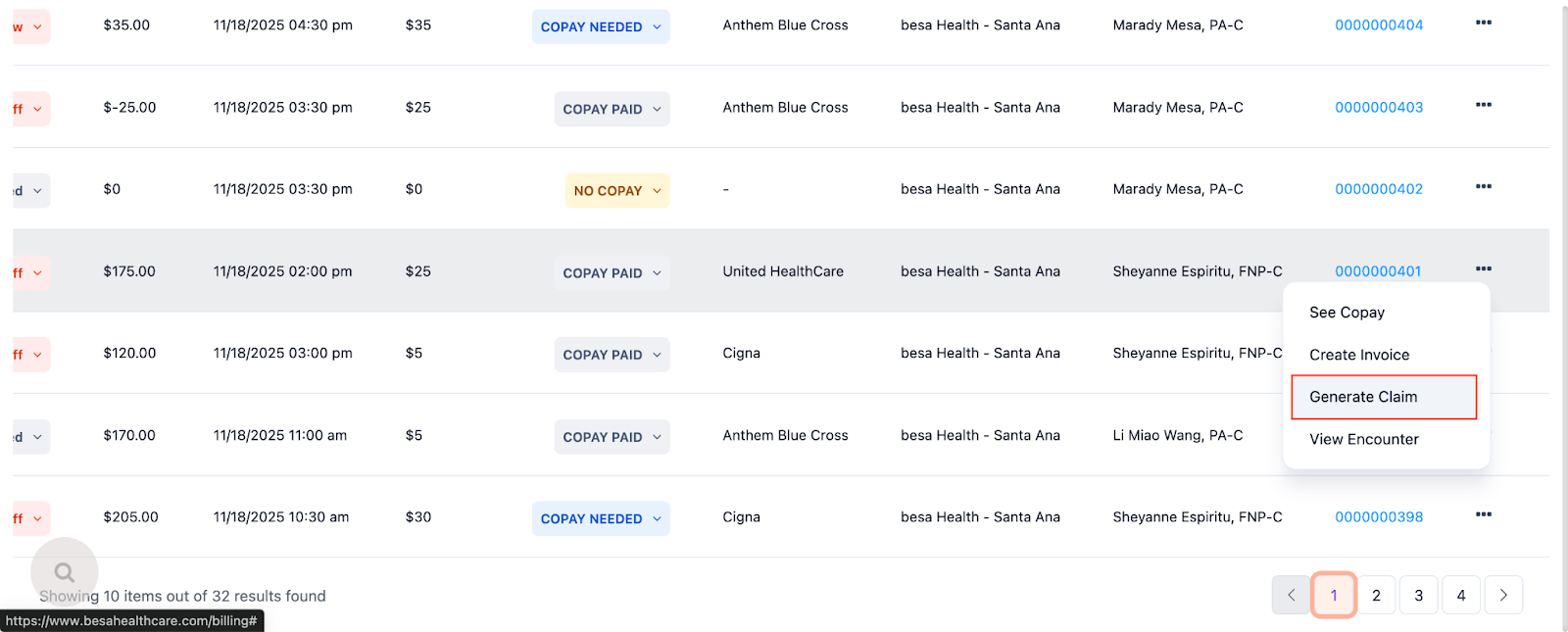
- The claim form will now open up and you can see some of the details related to the encounter. You can also add items which is what we will be doing.
- Here is an example of a completed form
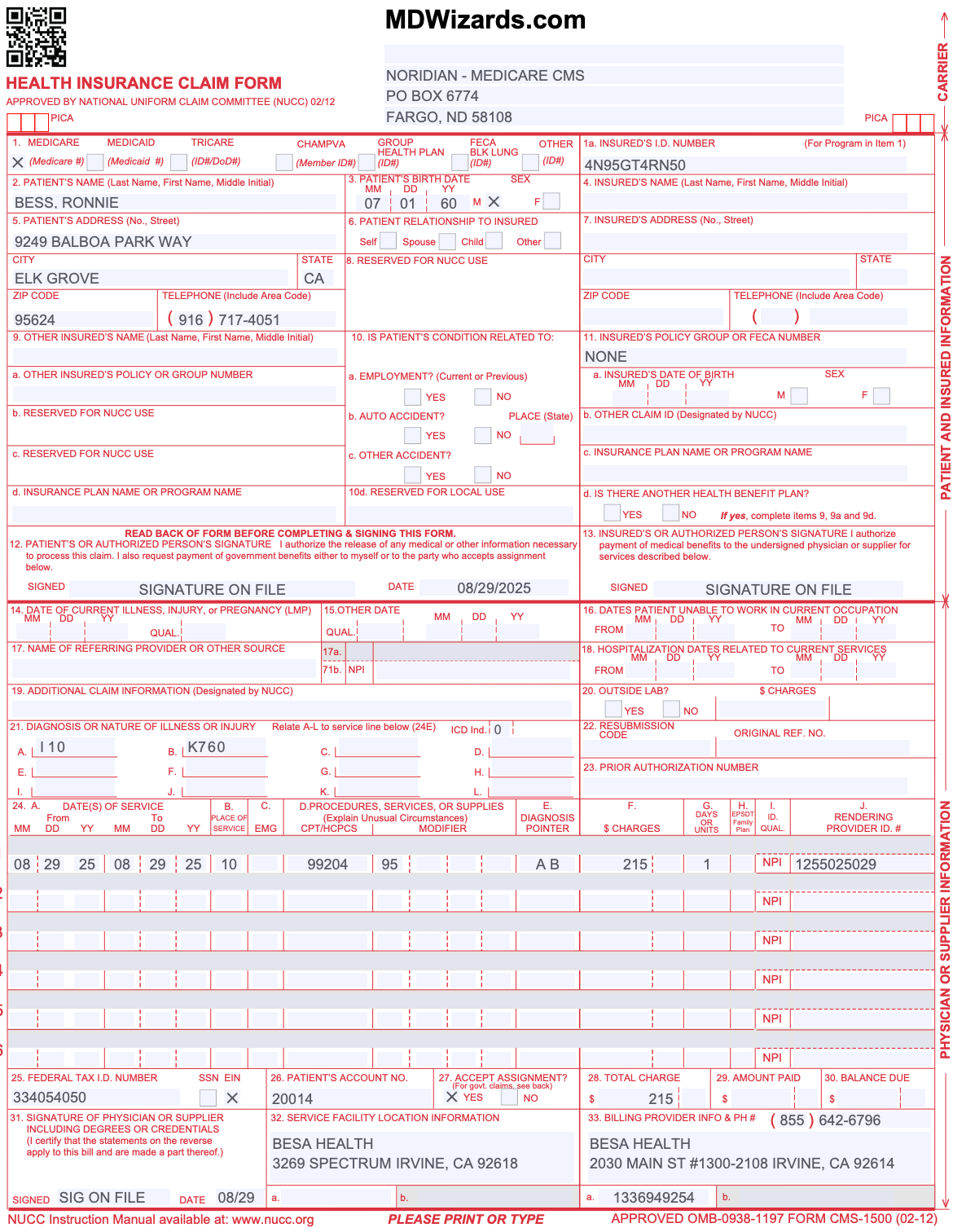
⚠️Make sure the service address is 3269 Spectrum Irvine, CA 92618.
-
Follow the steps necessary to complete the form. Watch this video, and view this resource to get a better understanding. I will add more to this is you don’t understand how.
- Download the claim and save it as the encounter number. Example: Encounter 00401-CMS1500
- Upload the claim file to the Claim Submissions folder and copy the file link.
- In the Patient billing spreadsheet, complete the row with the information you have from the claim. Add the following information:
- Status = Pending
- Add Claim File Link
- Submission Type = Mailed CMS-1500
-
Price

- Go back to the EHR billing page and add the following information:
- Upload Claim File
- Submission Type = Mailed CMS-1500
- Save
- Make sure status is Pending
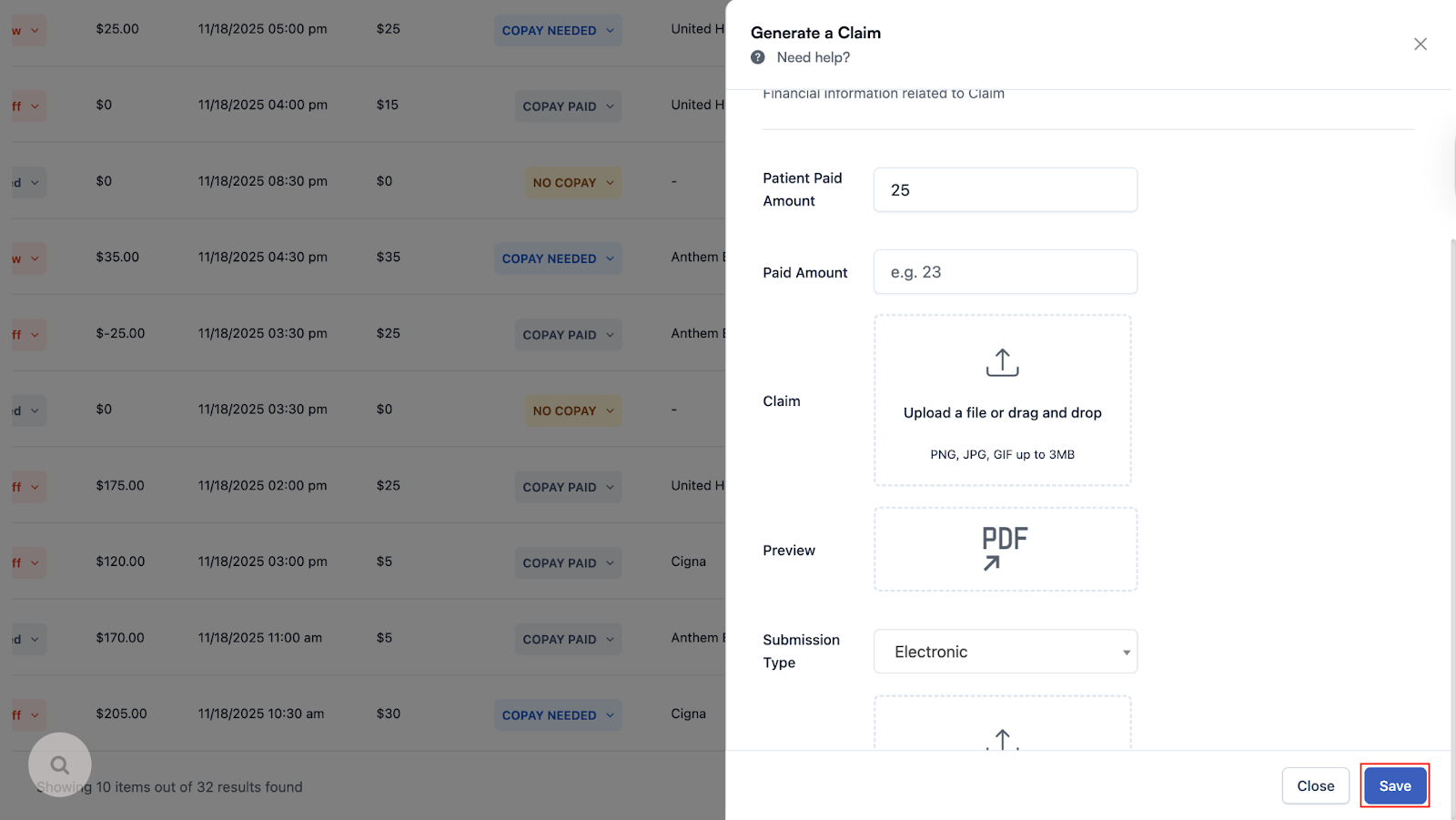
⚠️You will know it is submitted by, if you click on the action icon for the encounter row - you will no longer see the Generate Claim option.
- Send a message to Matthew with the link to the completed CMS-1500 form so he can print it out and mail it.
- Always double check to make sure everything is good. If it is, move on to the next!
Comments (0)