
This SOP covers the complete weekly provider-payment process—from the Tuesday EHR import through accounting and final payment confirmation.
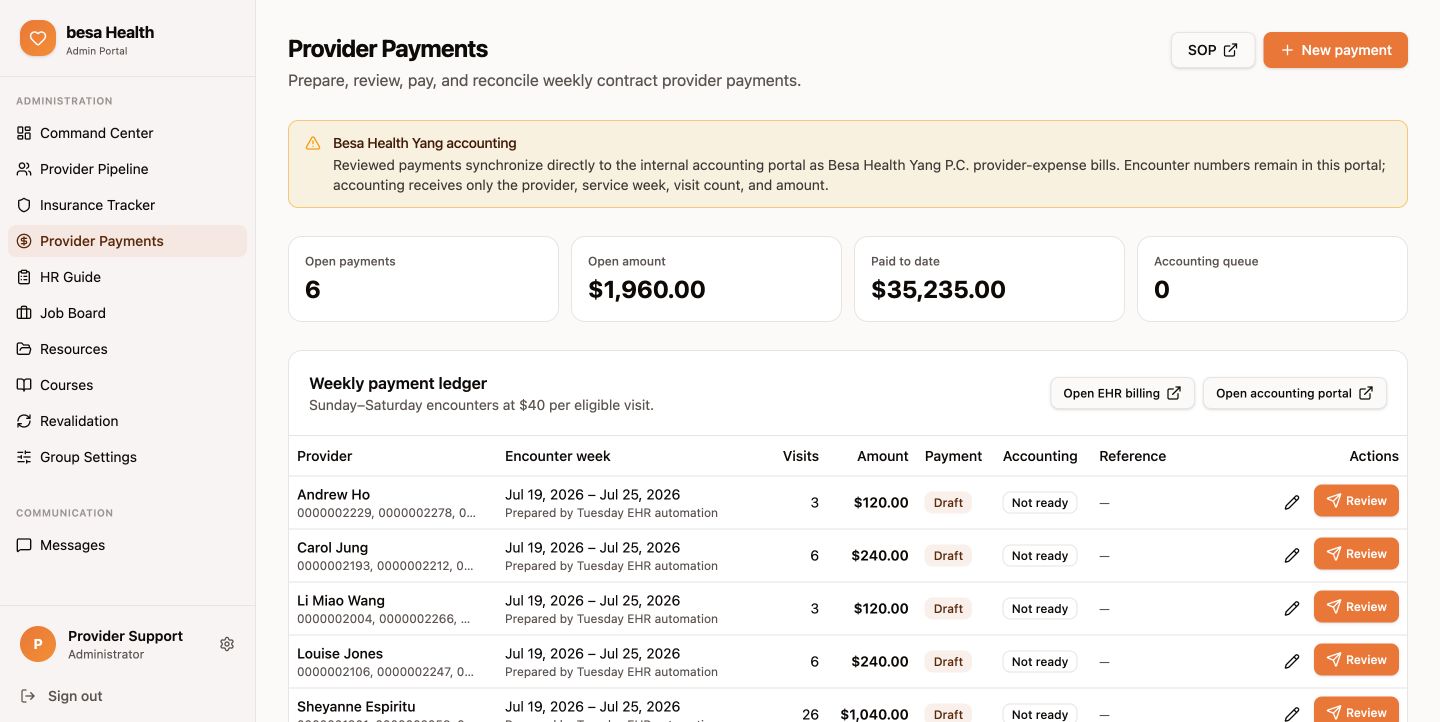
Schedule: The provider portal runs the import at approximately 6:15 a.m. Pacific every Tuesday for the prior completed Sunday–Saturday week. New payments default to $40 per eligible visit.
What the Tuesday automation does
- Checks every active contract provider.
- Loads EHR encounters for the prior Sunday–Saturday service week.
- Includes visits with a Completed or Pending Sign Off status.
- Creates or refreshes a Draft payment when eligible encounters are found.
- Calculates the starting amount at $40 per visit.
The automation does not submit a payment or create an accounting bill. A staff member must review each draft first. Providers with no eligible encounters are skipped, and a payment that is already Pending or Paid is never overwritten.
1. Open the weekly payment ledger
Go to Provider Portal → Administration → Provider Payments. Confirm that the service week is the prior Sunday through Saturday and look for rows prepared by Tuesday EHR automation.
2. Review or correct a draft
- Select the pencil icon on the provider's Draft row.
- Use Refresh from EHR if the EHR changed after the Tuesday import.
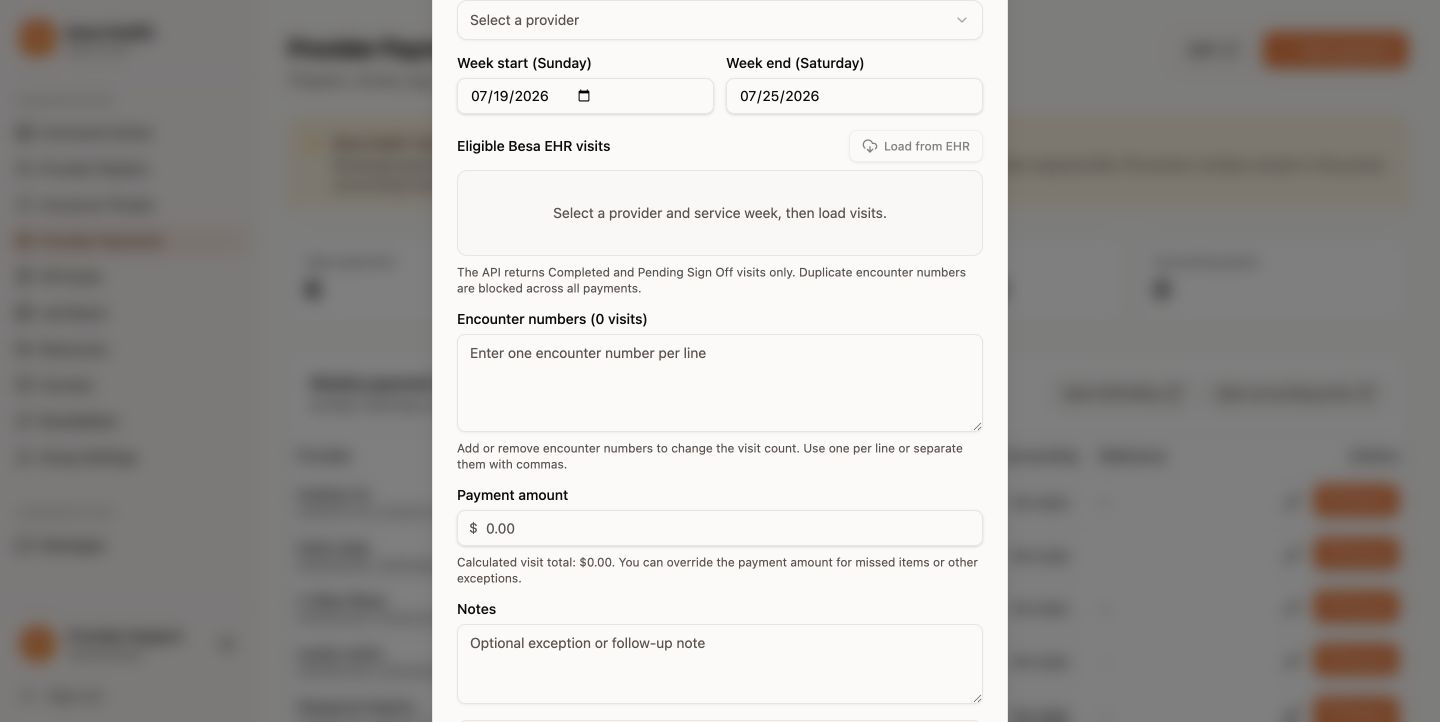
- Review Encounter numbers. Add a missed verified encounter or remove an incorrect one. Enter one number per line or separate numbers with commas. The visit count updates automatically.
- Review Payment amount. The calculated visit total is shown underneath, but the payment amount can be overridden for an approved exception.
- Add a note explaining any manual adjustment, then select Save draft.
Duplicate encounter numbers are blocked across all payments. Encounter numbers should be entered in the Encounter numbers field—not only in Notes—so the visit count is correct.
If no draft was created
Select New payment, choose the provider and Sunday start date, then select Load from EHR. If the API still returns no visits but a visit has been independently verified, enter its encounter number manually, set the approved amount, document the reason in Notes, and save the draft.
3. Double-check and submit
- Select Review on the Draft row.
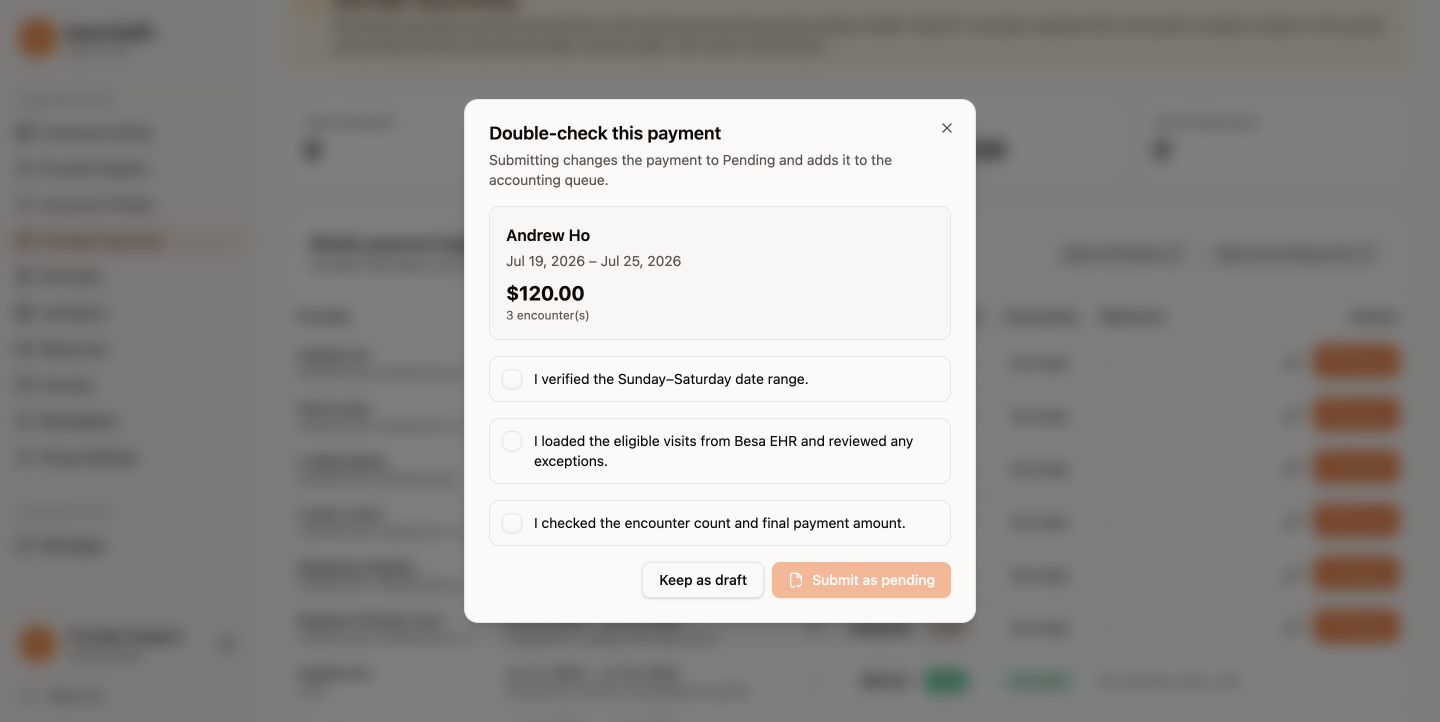
- Confirm the Sunday–Saturday date range.
- Confirm the eligible encounters and all exceptions.
- Confirm the final visit count and payment amount.
- Check all three review confirmations, then select Submit as pending.
Submitting changes the payment from Draft to Pending and places it in the accounting queue. If it has not yet been sent to accounting, use the return arrow to move it back to Draft for another correction.
4. Send the payment to accounting
- On the Pending row, select Send.
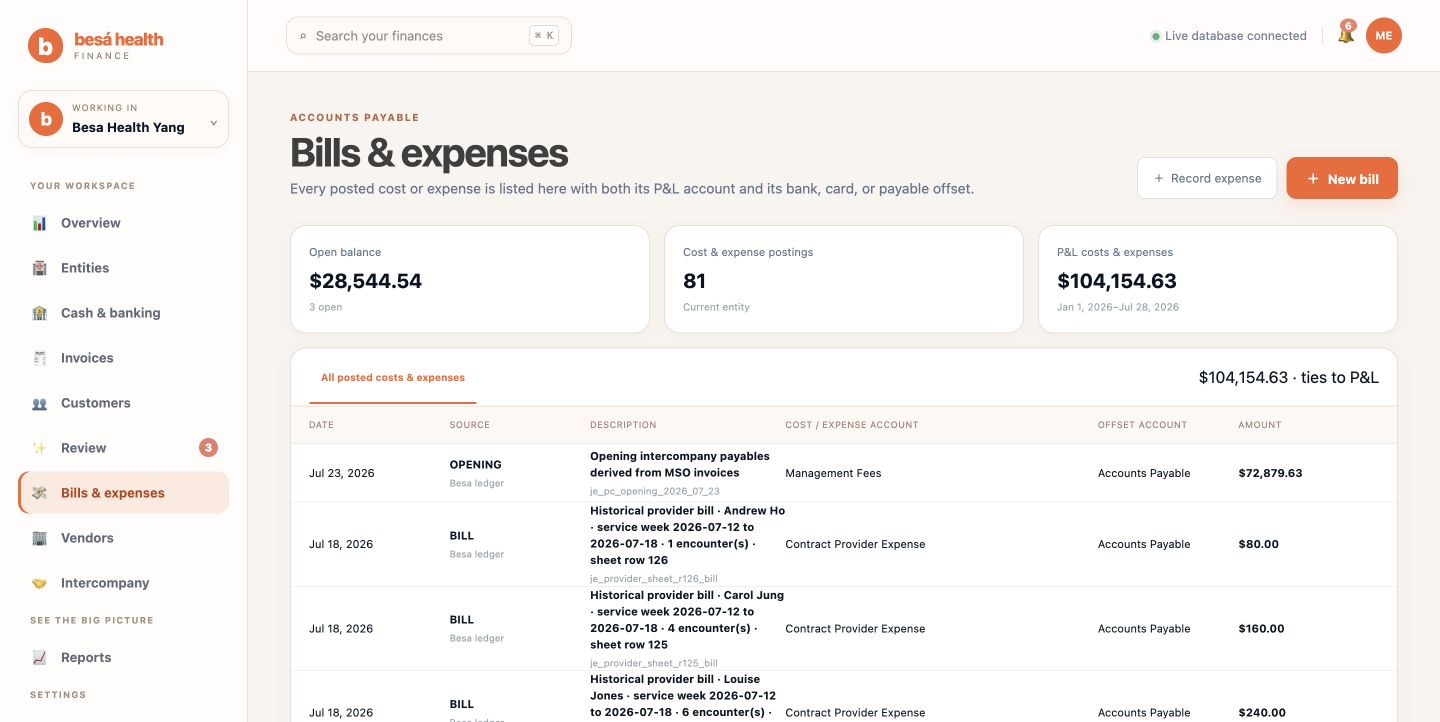
- The portal creates an open provider-expense bill for Besa Health Yang P.C. in the accounting portal. The due date is the Friday following the service week.
- Confirm the Accounting status changes to Recorded and that a reference appears.
- If the status is Sync error, read the error, correct the issue when possible, and select Retry.
Only the provider, service week, visit count, and final amount are sent to accounting. Encounter numbers remain in the provider portal.
5. Dr. Yang approves the weekly payment run
Dr. Yang receives a unique payment-confirmation link for the weekly run. The address begins with https://accounting.besahealth.org/payment-proof/ and ends with a unique token, for example https://accounting.besahealth.org/payment-proof/[unique-token].
Keep the link private: It is a single-use link that provides access only to that payment run. Do not reuse a link from another week, forward it outside the approved payment workflow, or upload patient or clinical information.
- Open the unique link for the current payment run.
- Confirm the page shows Besa Health Yang P.C. and the correct Sunday–Saturday service week.
- Confirm the provider count and Total to send.
- Review every provider name, bill reference, and amount against the matching Pending / Recorded rows in Provider Payments.
If anything does not match, stop before paying or approving the run. Have the payment corrected in the provider portal and resent to accounting. Do not approve a run with a provider, week, or amount discrepancy.
6. Dr. Yang sends each payment and uploads proof
Important: The confirmation page records the approval and proof; it does not send money. Dr. Yang must complete each transfer through the approved bank or payment service first.
- Pay each provider through the approved bank or payment service for the amount shown on the confirmation page.
- Download or capture a confirmation that shows the provider/payee, amount, payment date, and bank trace, check, or transfer number.
- Return to that provider's card on the payment-confirmation page.
- Enter the actual Payment date.
- Enter the bank trace, check number, or transfer ID in Transfer reference.
- Under Proof, select Add receipt or screenshot and upload the matching confirmation. Do not upload patient or clinical information.
- Repeat these steps for every provider in the run.
- Review the entire run, then select Confirm [number] payments once. This approves the run and records the payment references and proof.
7. Confirm the payment and reconcile both portals
- Confirm the payment-confirmation page reports that the run was completed successfully.
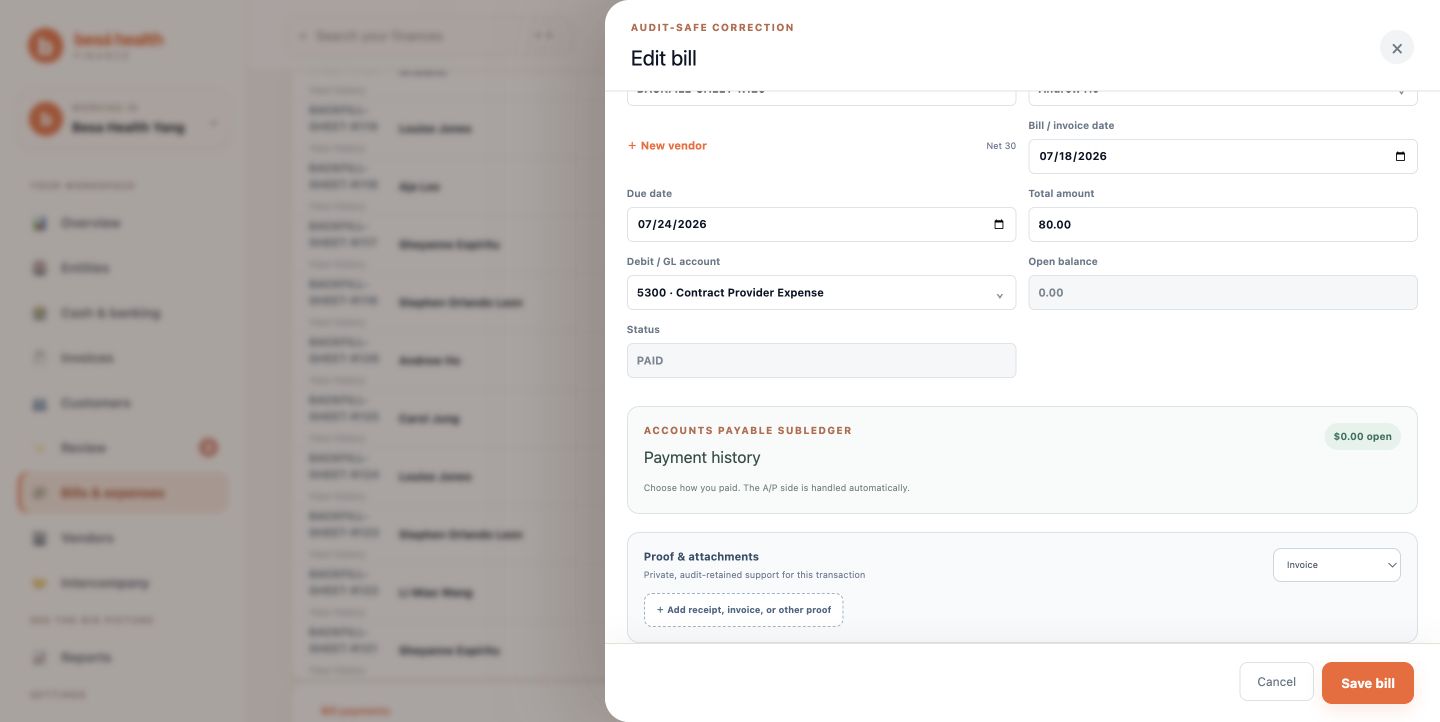
- In accounting, confirm each provider bill shows Paid with an open balance of $0.00.
- Confirm Payment history shows the posted payment, correct transfer reference, and amount.
- Under Proof & attachments, confirm the uploaded proof appears and opens with View.
- Return to Provider Payments and confirm the same provider/week changes to Paid / Recorded. The provider can then see it in My Payments.
If proof does not upload
Do not create or confirm a second payment. Retry the upload on the same provider card before confirming the run. If the run was already confirmed or the private link is no longer available, send support the provider, service week, bill reference, and payment reference so the existing payment can be corrected.
If a confirmed payment is incorrect
Confirmed payments are audit-locked. Void or reverse the incorrect payment, then record the correction. Do not delete or overwrite the original transaction.
If the provider portal does not change to Paid
First confirm the accounting payment is posted, the open balance is $0.00, and proof is attached. Refresh the Provider Payments page once. If it still does not reconcile, send support the provider, service week, accounting bill number, payment reference, and a screenshot. Do not create a second bill or payment.
Status guide
| Status | Meaning | Next action |
|---|---|---|
| Draft / Not ready | Imported or manually created; still editable. | Verify encounters, amount, and notes. |
| Pending / Ready | Reviewed and queued for accounting. | Send to accounting, or return to Draft before sending. |
| Pending / Recorded | The open bill exists in accounting. | Dr. Yang opens the private payment-confirmation link, pays each provider, uploads proof, and confirms the run. |
| Paid / Recorded | Payment and accounting confirmation are complete. | No action unless reconciliation identifies an exception. |
| Sync error | Accounting did not accept or confirm the bill. | Review the error and select Retry. |
Troubleshooting
The portal says there are no visits
- Confirm the week runs Sunday through Saturday.
- Confirm the provider and EHR identity match.
- Confirm the encounters are Completed or Pending Sign Off.
- Select Refresh from EHR.
- If a visit is verified but still missing, enter the encounter manually and explain the exception in Notes.
The visit count or payment is wrong
Open the Draft with the pencil icon. Add or remove encounter numbers to correct the visit count, then edit Payment amount if the approved total differs from the calculated visit total. Save before reviewing again.
An encounter is blocked as a duplicate
Search the payment ledger for that encounter. It is already attached to another payment and must be removed from the incorrect Draft before it can be added elsewhere.
A Draft will not save
Refresh the browser once and try again. If the error continues, capture the provider, week, visible error, and intended encounter count and amount, then send them to the support team. Do not place encounter numbers only in Notes.
Final weekly checklist
- Every active provider with eligible visits has one payment for the correct week.
- Encounter counts match the reviewed encounter list.
- Manual changes have a clear note.
- Payment amounts match the approved totals.
- All reviewed payments are Pending and Recorded in accounting.
- Dr. Yang approved the run through its private link, and every transfer has a reference and proof.
- Paid confirmations reconcile back to the provider portal.
Comments (0)