
Checking a Patients eligibility is one of the most crucial steps to onboarding a Patient. The reason being, we never really know what is going on with a Patient and their insurance, financial liability without checking. Tip of info: Sometimes we still don’t know based on the check…
📚Resources Needed
🚀 Tips & Tricks
-
A lot of the insurance information needed can be found on the insurance card.
-
Depending upon where the Patient booked the appointment will determine where you can get the Patient and insurance information.
-
If something with the insurance doesn’t make sense, call the Patient to confirm.
-
Be sure to watch this demo on how to perform an eligibility check in Availity.
-
Here are the main actions your doing:
- Searching insurance eligibility
- Updating Patient demographics
-
Addressing any possible hiccups
📘 Instructions
Make sure not to forget one of these steps.
- First you will gather the Patients insurance information from wherever they booked the appointment from.
- Login to Availity.
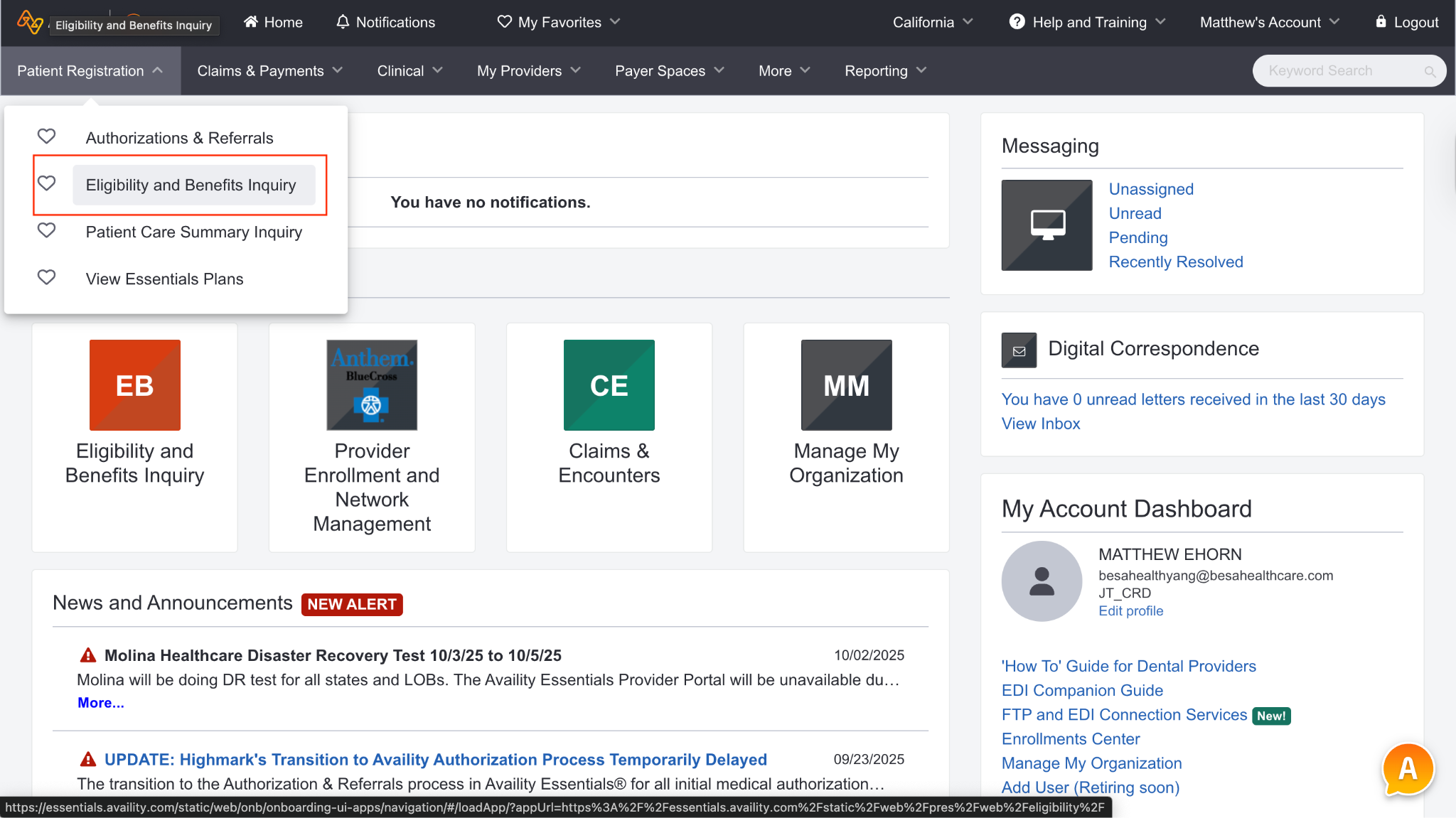
- From the homepage, click on Patient registration > Eligibility and Benefits
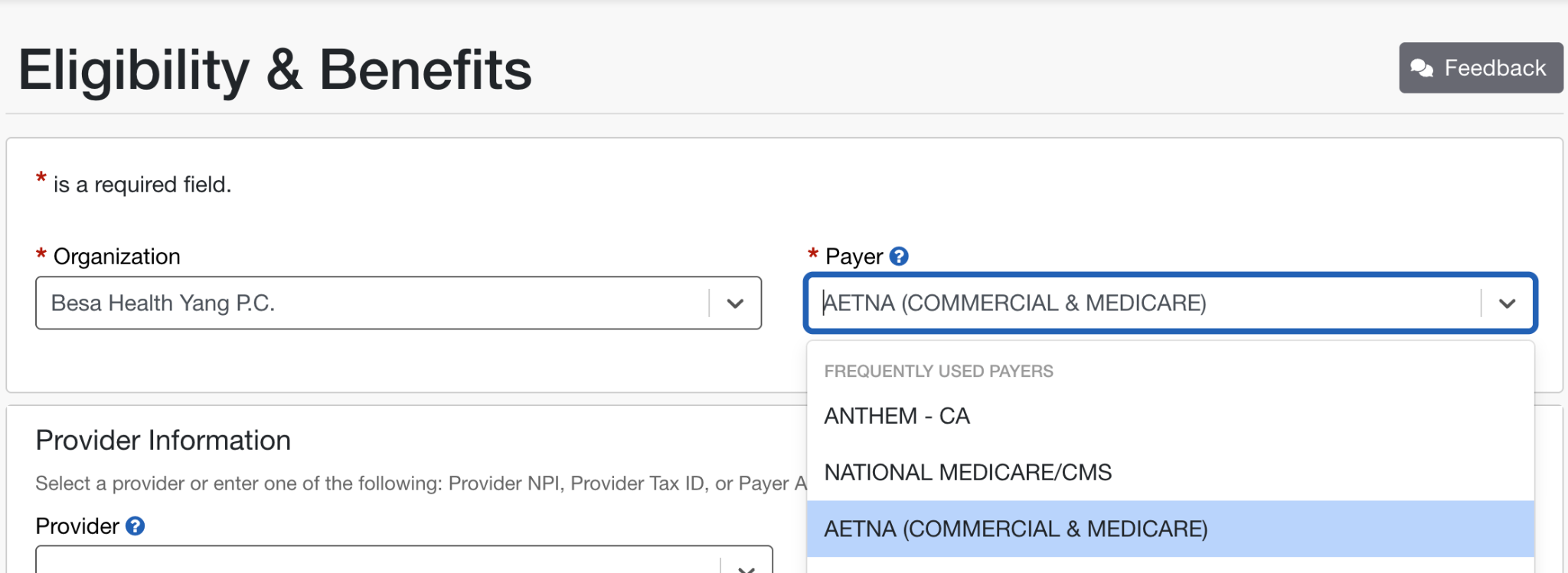
- In the Payor section, be sure to select Aetna
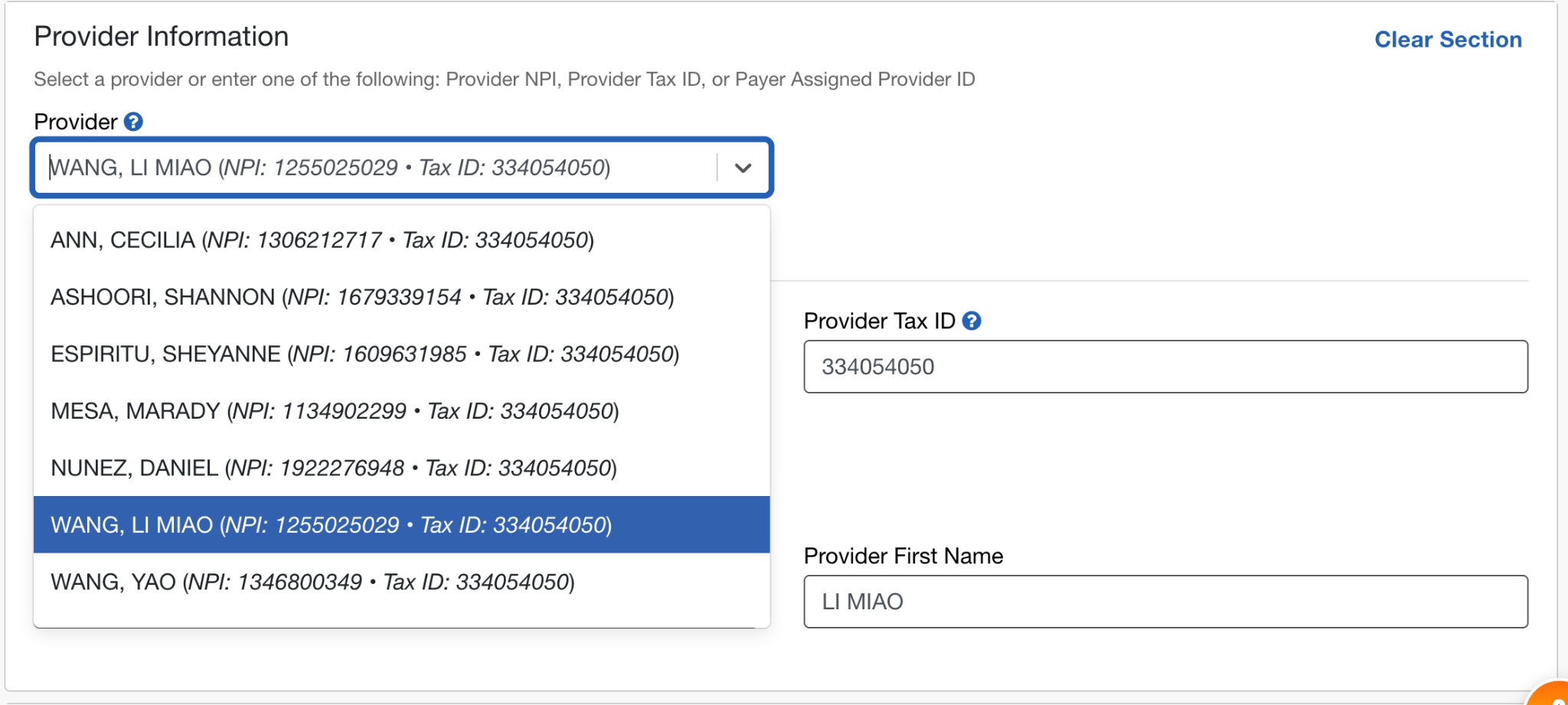
- Select the Provider the appointment is for.
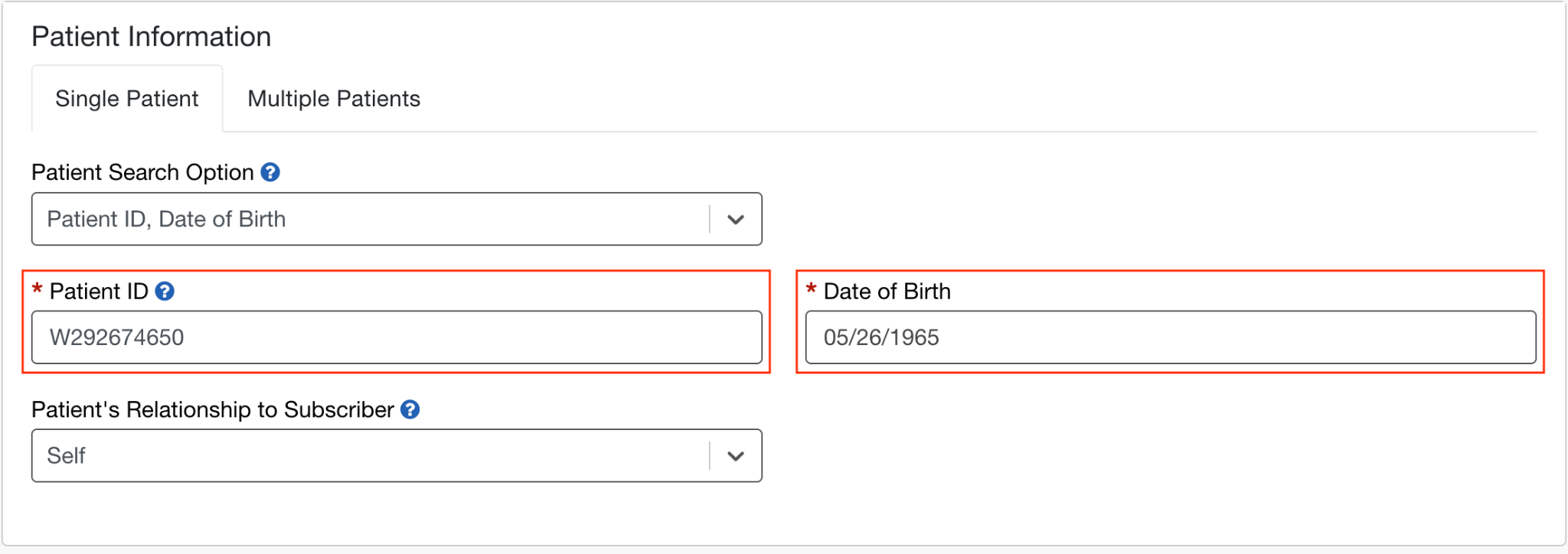
- In Patient Information, enter in the Patient Aetna Member ID and DOB
- In Service Information, type in 98 (Professional Physician Visit - Office) and click search.
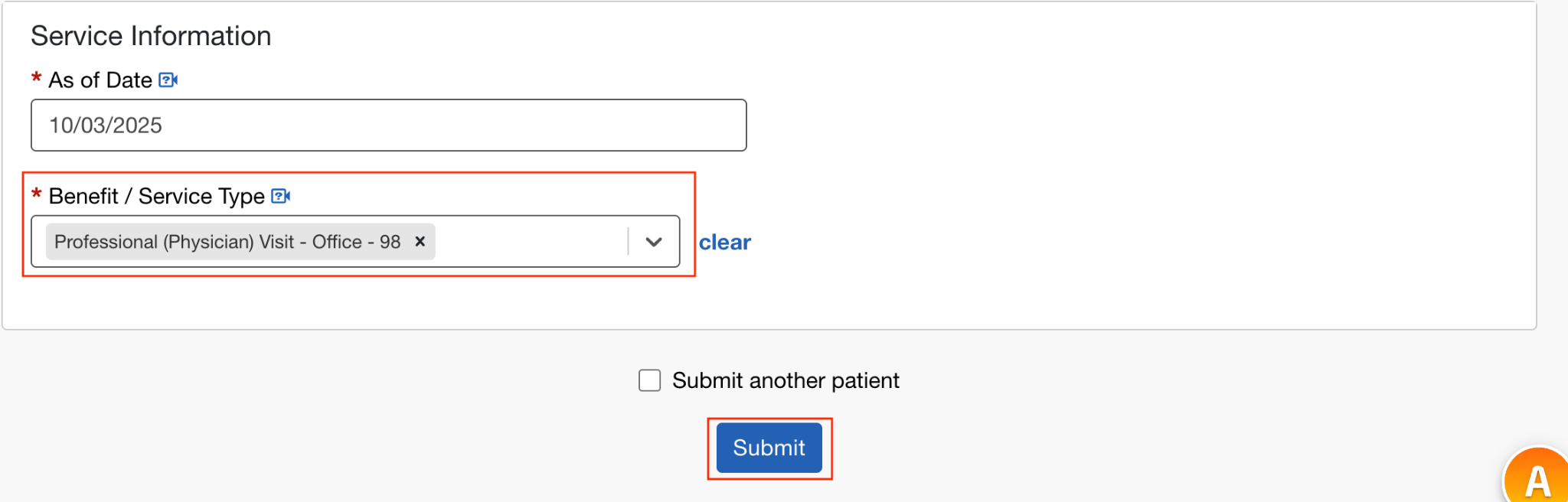
- Always make sure they have Active coverage.
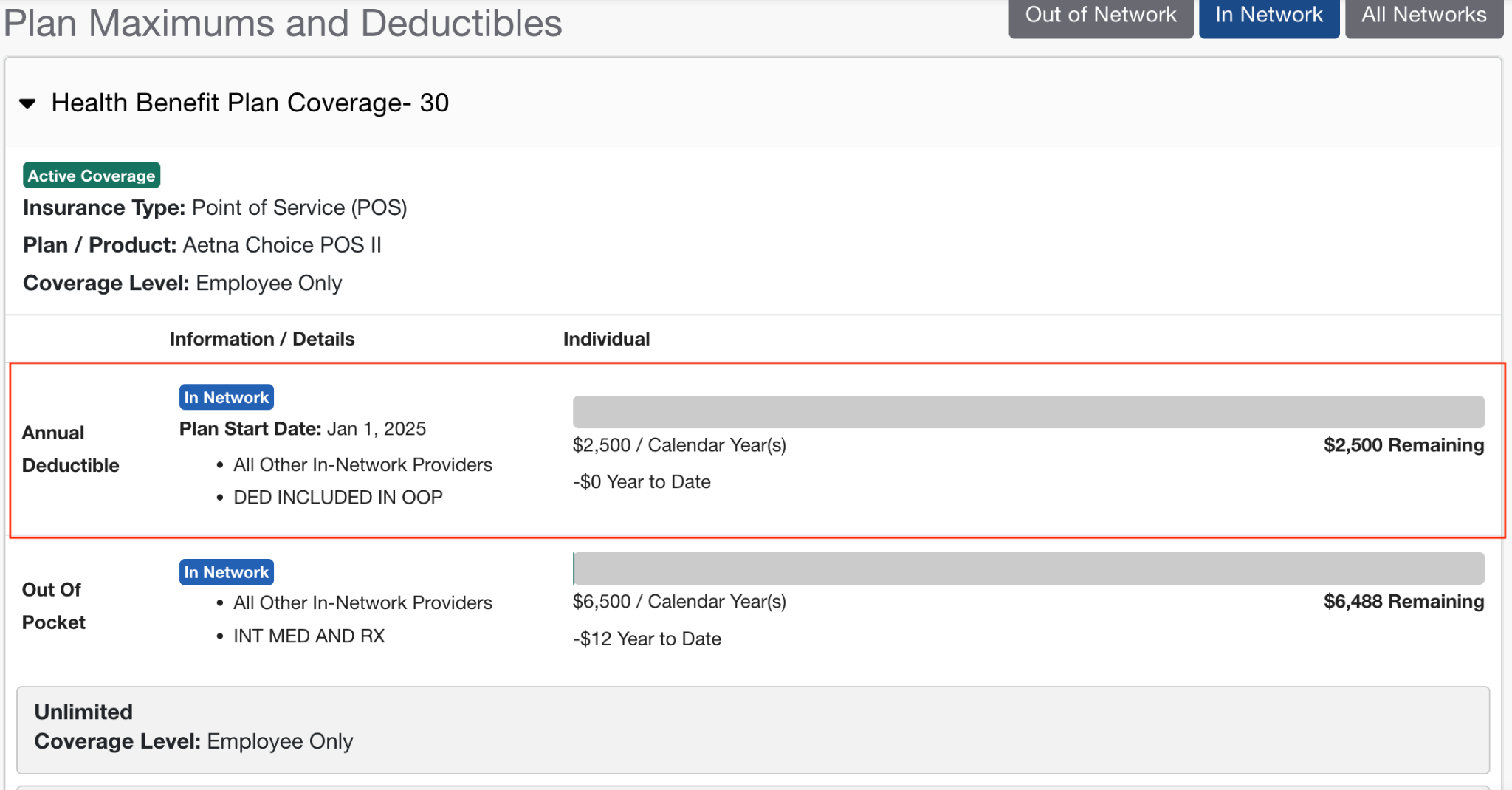
- Check what their Deductible may be.
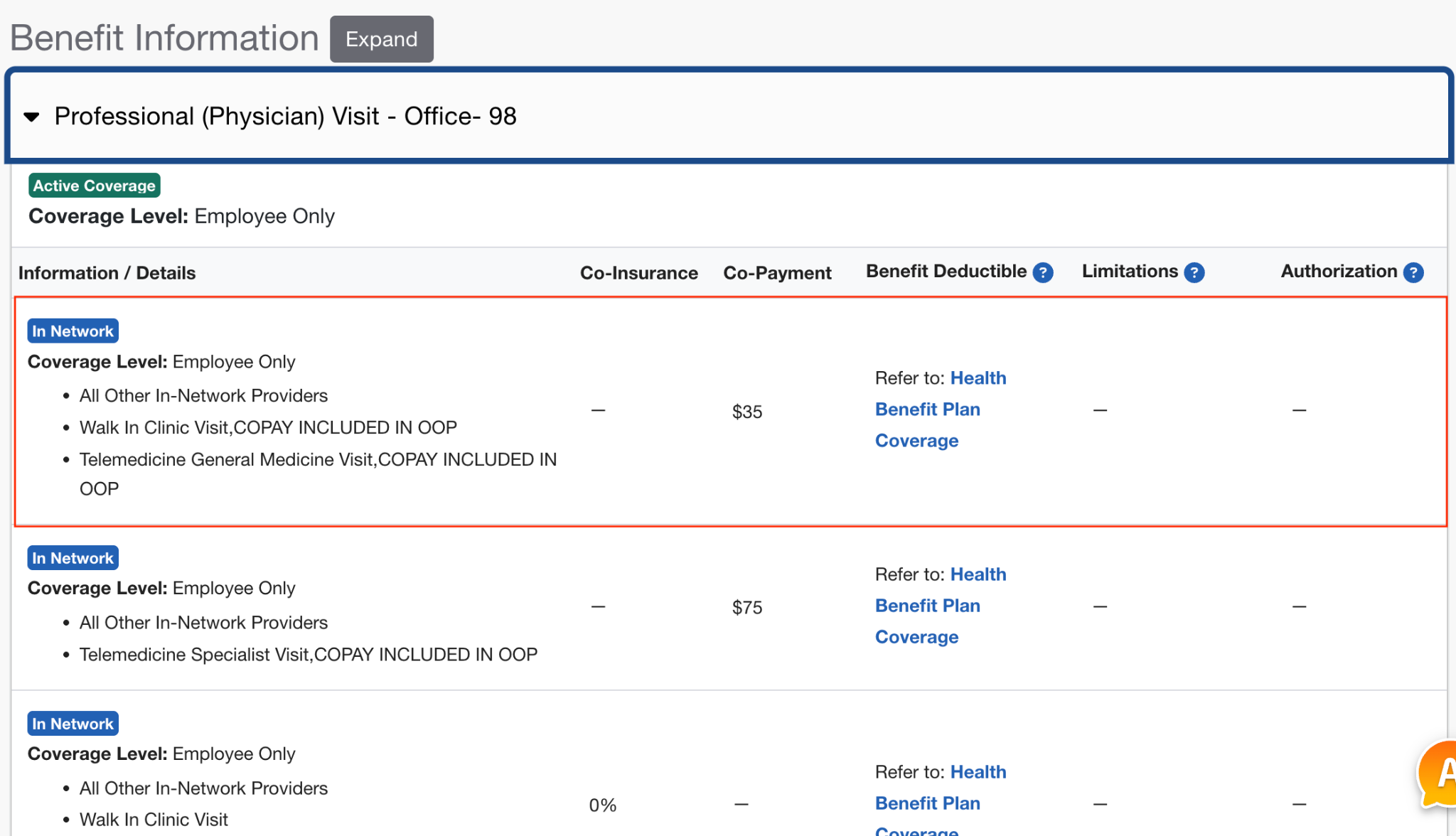
- Scroll down to Benefit Information and look to see what the Copay may be for the Patients visit. In this specific example, you will see that the Copay is $35.
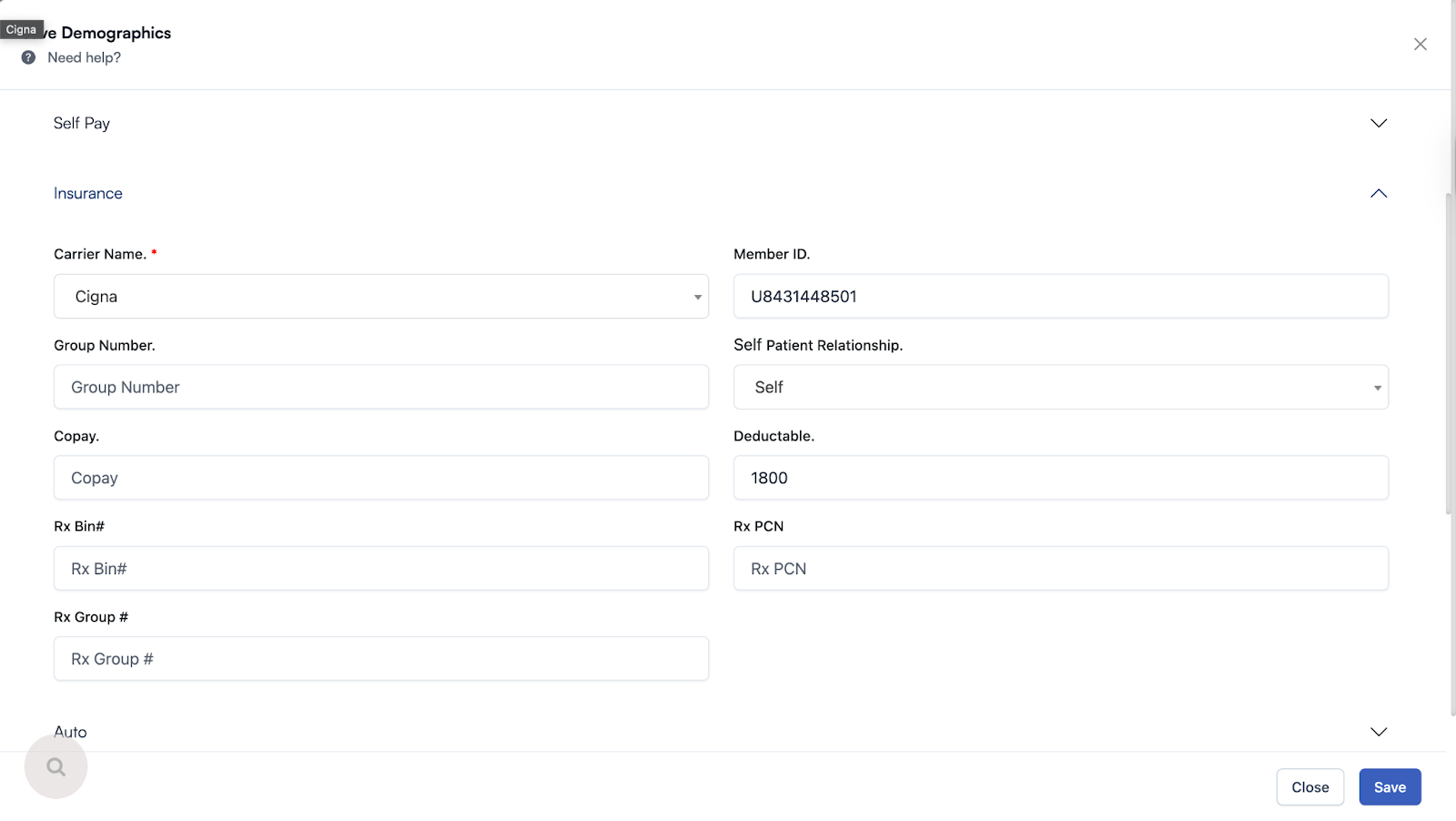
- Now that you have the Patient insurance eligibility, enter the information into the Patient demographics section of the EHR.
Here is a video to help you out.
-
https://drive.google.com/file/d/10UUKI9_jvudsqzbu-h0AC_vNkdbT06KU/view?usp=drive_link
Comments (0)