
A useful Support request should let the receiving person understand the goal, reproduce the issue, judge its impact, and know what has already been tried. This SOP covers searching first, choosing the right priority, submitting complete information, and following one request through resolution.
📚 Resources Needed
- Support Platform
- Platform, workflow, timestamp, affected record reference, expected result, actual result, and troubleshooting attempted
- A safe screenshot or file when it materially helps
✅ Before You Start
- Search the Help Center and complete the article’s troubleshooting steps.
- Confirm the issue is still occurring and note the approximate time and platform.
- Identify whether one person, one record, one team, or the whole system is affected.
- Remove passwords, full payment details, unrelated patient information, and private links from screenshots.
🚀 Tips & Tricks
- A good subject follows Platform — action — problem, such as “Provider Portal — document upload — license remains Missing.”
- Include record IDs or encounter numbers instead of patient names when that is enough to investigate.
- Describe the last successful step before the problem.
- If the problem changes, add the update to the existing request rather than opening a new one.
📊 Priority Guide
| Priority | Use It When | Example |
|---|---|---|
| Low — question or feedback | Work can continue and no response is time-sensitive. | Suggestion for an SOP or non-blocking question. |
| Normal — help needed | A user needs help but has a workaround or the impact is limited. | One document remains Missing after a successful upload. |
| High — blocking my work | The user cannot complete an important task and no safe workaround exists. | Unable to submit an approved weekly payment draft. |
| Urgent — time-sensitive issue | Immediate operational or safety impact requires rapid attention. | Widespread production outage or a time-critical payment/access failure. |
⚠️ Urgent should reflect real time-sensitive impact. Selecting Urgent for a routine question makes it harder to identify true emergencies.
📘 Find an Answer First
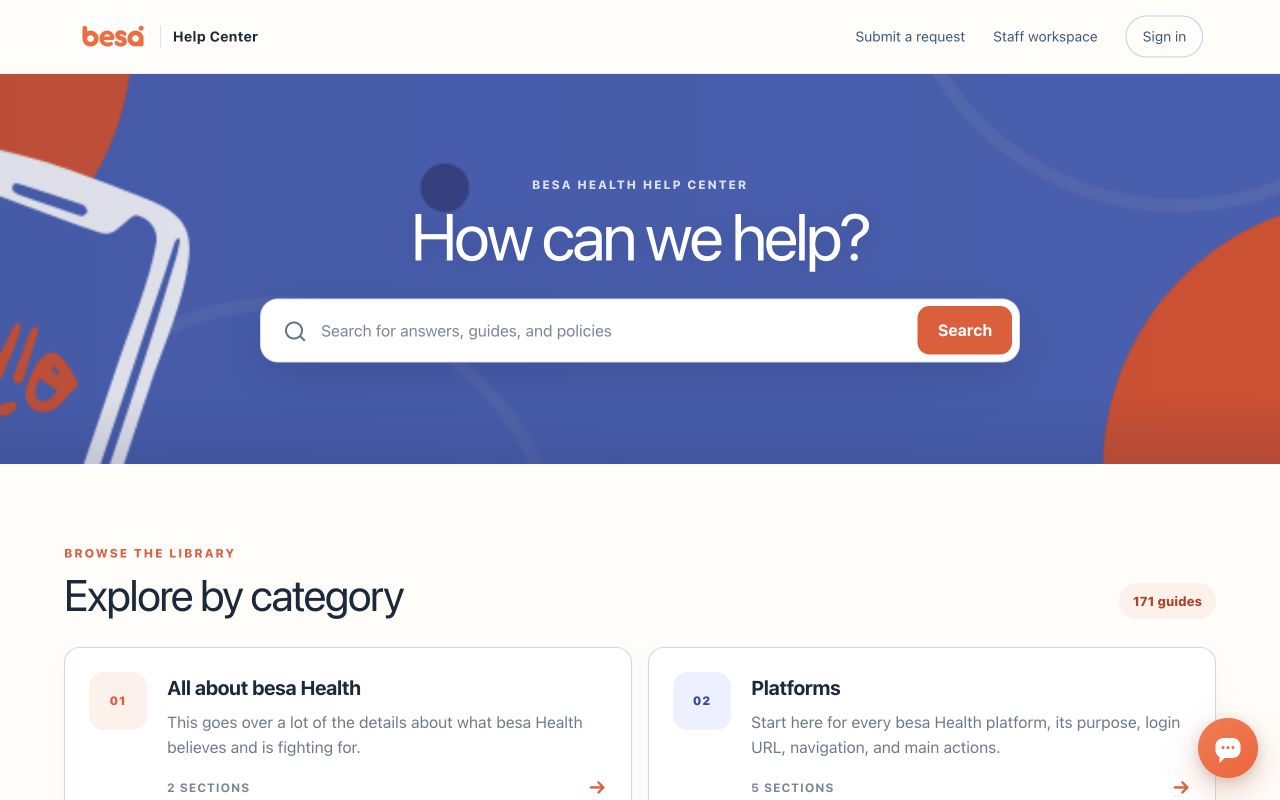
- Open the Help Center and search the platform plus action.
- Open the closest article and confirm it applies to your role and environment.
- Complete its prerequisites, instructions, troubleshooting, and completion check.
- If resolved, do not submit a request. If unresolved, keep the article title and steps tried for the request description.
📘 Submit a Complete Request
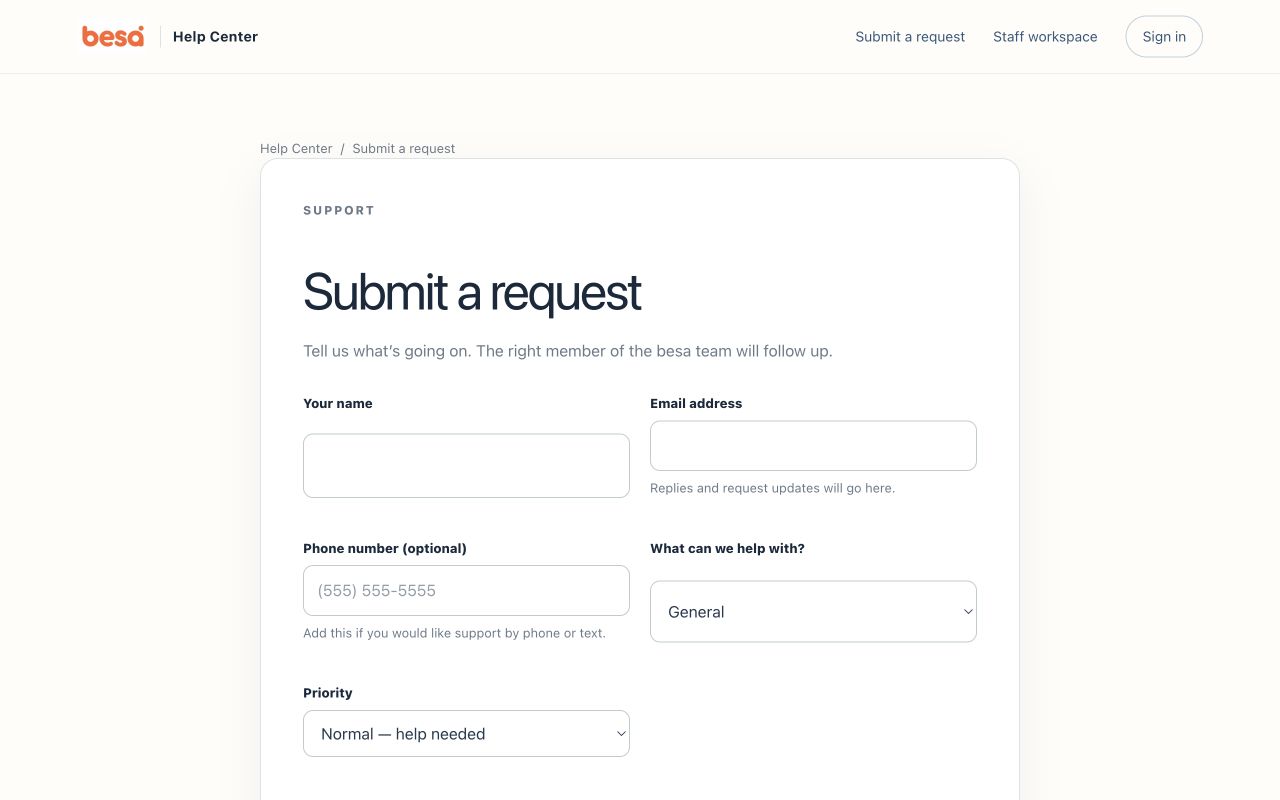
- Select Submit a request.
- Enter Your name and a monitored Email address. Add Phone number only when you want phone or text support.
- Choose What can we help with? based on the affected platform or function.
- Select the correct Priority using the guide above.
- Write a specific Subject.
- In How can we help?, include: goal, platform and page, exact steps, actual result, expected result, timestamp, affected record ID, scope, troubleshooting tried, and whether work is blocked.
- Attach up to five relevant files, 10 MB each. Confirm each filename appears.
- Review for sensitive data and select Submit request. Save the request confirmation or ID.
📝 Request Description Template
What I was trying to do: [goal]
Platform and page: [system / page]
Steps: [1, 2, 3]
Actual result: [what happened]
Expected result: [what should happen]
Time: [date, time, time zone]
Record reference: [non-sensitive ID]
Scope: [one record / one user / multiple users]
Troubleshooting: [what was tried]
Impact: [blocked / workaround available]
📘 Follow the Existing Request
- Open the request confirmation email or sign in to My Requests.
- Open the existing ticket and read the latest response completely.
- Add requested information as a reply on the same ticket.
- When testing a proposed fix, repeat the original steps and report the result, not only “still broken.”
- If resolved, confirm the expected result and allow the request to be closed.
🛠 Troubleshooting
You did not receive a confirmation
Check the submitted email spelling and spam folder. Do not immediately resubmit. Sign in to My Requests or ask Support to search by email and approximate submission time.
An attachment will not upload
Confirm it is within the five-file and 10 MB-per-file limits. Rename the file clearly and retry. If the request must be submitted first, mention the filename and upload issue in the description.
The problem affects multiple people
Open one representative request and state the number of affected users or records. Add examples as non-sensitive references. Do not create a ticket for every person unless Support instructs you to.
✅ Completion Check
- The Help Center was searched first.
- Priority matches real impact.
- The description contains reproduction steps and expected versus actual result.
- Attachments are relevant, safe, and visible by filename.
- Future updates will stay on the same request.
If you have any questions, something does not match what you see, or you need more information, please reach out to Support.
Comments (0)