
The Support Platform has three connected areas: the public Help Center for SOPs, the request form and My Requests experience for people seeking help, and the protected Staff Workspace for authorized team members managing tickets and requester history.
📚 Resources Needed
- Support Platform
- Submit a request
- Staff Workspace for authorized staff
✅ Before You Start
- Decide whether you need an answer, want to submit or follow a request, or need to manage a ticket as staff.
- Search the Help Center using the platform or workflow name before opening a new request.
- Use your real name and monitored email so updates reach you and request history can be matched.
- Staff must use their separate Support administrator credential. It is not the EHR password.
⚠️ Do not upload sensitive patient information unless the approved support workflow specifically requires it. A screenshot should show the issue while excluding unrelated patient, password, bank, or credential information.
🚀 Tips & Tricks
- Search with the system and action—for example, Accounting bill, Provider credentialing, or Broker enrollment.
- Use My Requests to add new information to the existing ticket instead of opening another request.
- Choose priority based on impact, not frustration. Urgent is for a genuinely time-sensitive issue.
- Staff should use Internal Note for staff-only context and Public Reply for anything intended for the requester.
- There is only a main production Support platform; do not use or document a develop Support URL.
📘 Public Help Center and Requests
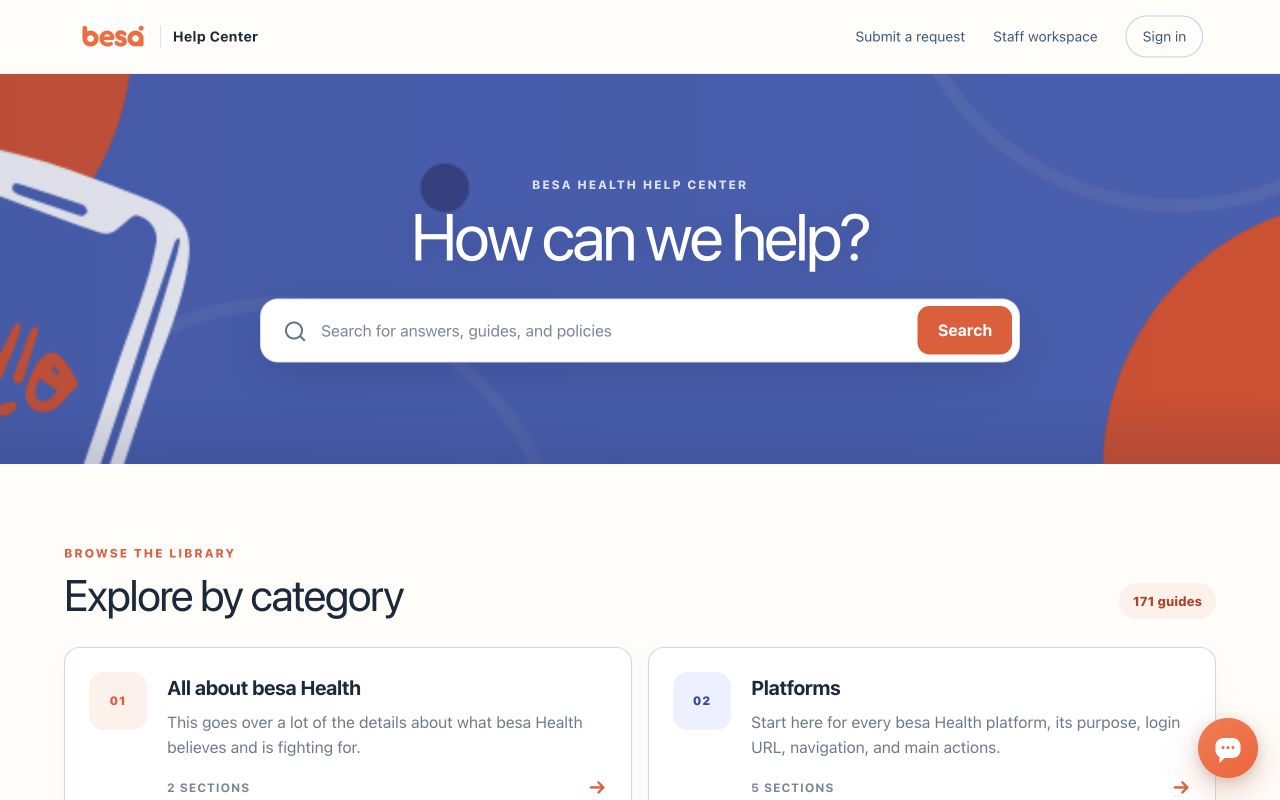
- Open support.besahealth.org.
- Use the search box or browse categories. Open the most relevant SOP and complete its troubleshooting and completion checks.
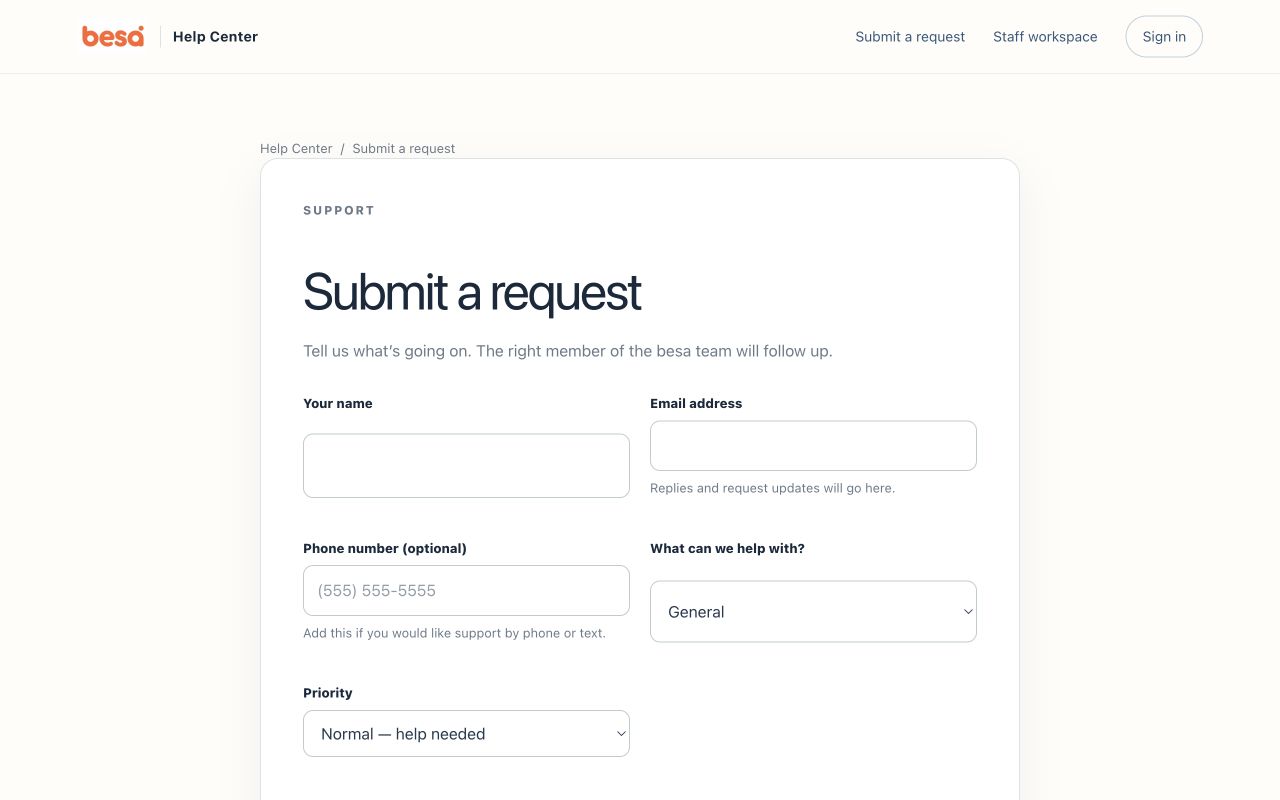
- If the issue remains, select Submit a request.
- Enter Your name, Email address, optional Phone number, What can we help with?, Priority, Subject, description, and relevant attachments.
- In the description, state what you were trying to do, the exact result, expected result, when it happened, platform, record reference, and troubleshooting already attempted.
- Select Submit request. Save the confirmation or request ID.
- Sign in to My Requests to review status or add follow-up. Reply to the same request when the issue is related.
📘 Staff Workspace Access
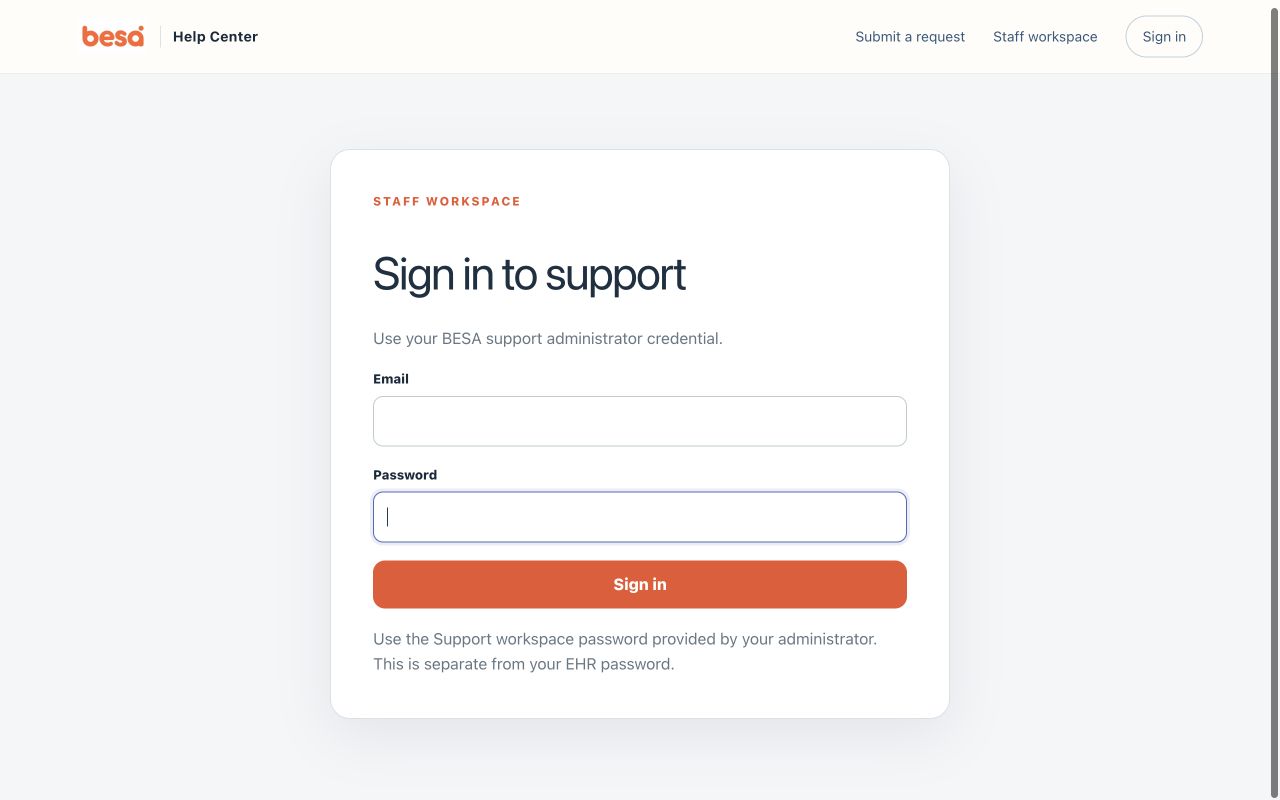
- Open Staff Workspace.
- At Sign in to support, enter the BESA support administrator Email and Password provided for your role.
- Confirm the workspace opens with Tickets and Requesters.
- If desktop alerts are offered, enable them only on a managed device. Use Send test notification to confirm they work.
- Do not share the staff credential or save it on a shared device. Sign out when the workstation is not controlled.
🧭 Support Areas
| Area | Purpose | Who Uses It | Key Result |
|---|---|---|---|
| Help Center | Find SOPs by search, category, section, or article. | Everyone | The user resolves the task using the approved process. |
| Submit a request | Create a tracked support request with category, priority, details, and files. | Anyone needing help | A confirmation and ticket history are created. |
| My Requests | Review and continue the requester’s existing conversations. | Signed-in requester | Follow-up stays on one ticket. |
| Tickets | Search, filter, assign, reply, note, update, and resolve requests across channels. | Authorized Support staff | Every active issue has an owner, priority, status, and next action. |
| Requesters | Review contact details and complete activity across tickets, calls, texts, emails, chats, and Help Center requests. | Authorized Support staff | Staff see history before creating or responding to a ticket. |
🛠 Troubleshooting
Search results are not helpful
Use fewer terms, then add the platform name and exact action. Browse the applicable platform section when the system name is known.
The request form will not submit
Check name, email, subject, description, file count, and file size. Remove an attachment temporarily to isolate the issue. Keep a copy of the description before refreshing.
Staff sign-in fails
Confirm you are on /support and using the separate Support administrator credential. Do not try EHR or requester sign-in credentials. Ask an administrator to verify access.
✅ Completion Check
- The user searched the Help Center before escalating.
- A new request contains enough detail to reproduce or route the issue.
- Follow-up remains on the same request.
- Staff access uses the separate protected credential.
- No sensitive or unrelated information was included.
If you have any questions, something does not match what you see, or you need more information, please reach out to Support.
Comments (0)