
How to create a complete referral and move it through the care coordination workflow
Purpose. Create one complete referral for the correct patient visit so the care manager or Support staff can coordinate with a specialist without having to request missing information.
Scope. Applies to providers and authorized staff members who create referrals, and to care managers and Support staff who identify the destination provider and update the referral status.
📚 Resources Needed
Access to the Besa EHR Orders page with permission to create orders.
The correct patient record and visit or encounter.
The diagnosis and ICD-10 code documented for the visit.
The requested specialty, visit type, and priority.
Relevant symptoms, duration, findings, tests, treatments tried, authorization information, and provider or location preferences.
✅ Before You Start
Confirm the correct patient and visit or encounter.
Check the patient record and Orders page for an existing referral tied to the same visit.
Create only one referral per visit. Do not create a second referral for the same encounter.
Confirm the requested referral, diagnosis, ICD-10 code, specialty, and priority are supported by the visit documentation.
Follow the approved urgent or emergency workflow when immediate care may be needed. Do not wait for routine referral processing.
Use only the minimum necessary patient information in screenshots, chats, or Support requests.
🚀 Tips & Tricks
Always Save New Referrals As Draft. Draft tells the care manager or Support staff that the referral needs to be worked.
Use Purpose For The Referral Reason. Clearly state what the specialist should evaluate or treat. Include the problem, relevant location or laterality, duration, and requested evaluation. Avoid vague wording such as ‘evaluate,’ ‘pain,’ or ‘specialist referral’ by itself.
Add The ICD-10 Code. Select the ICD-10 code supported by the visit documentation. Do not guess or select a convenient code just to complete the form.
Provide Detailed Notes. Use Notes and Referred Note to include relevant symptoms, duration, findings, completed tests, treatments tried and the response, important history, authorization details, and any provider or location preference.
Move To Pending Only After A Provider Is Identified. The care manager or Support staff changes the referral from Draft to Pending after the destination provider has been identified.
📘 Instructions
Step 1 Open The Referral Order
Sign in to the staff Besa EHR and open Orders.
Select + Add Order.
Select the correct Patient Name * and Encounter #.
Recheck the patient's full name and encounter number, then confirm no referral already exists for the visit.
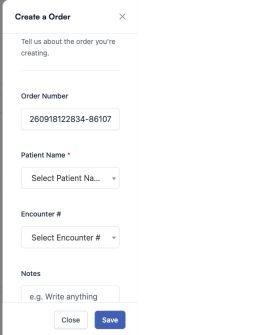
The order information fields appear at the top of the Create a Order panel.
Step 2 Enter The Order Information And Keep Draft
In Notes, enter the clinical and logistical information Support and the specialist will need.
Leave Order Status set to Draft. Every new referral must be saved as Draft so the care manager or Support staff knows it needs work.
Under Order Details, select Referral.
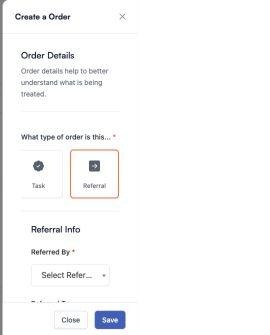
Select Referral to display the referral-specific fields.
Step 3 Complete The Referral Details
In Referred By *, select the referring provider.
In Referred To, select the specialist when one is already known. Otherwise, leave it blank so the care manager or Support staff can coordinate placement.
Enter the Prior Auth Code when one is available.
In Referral Type *, select the correct specialty or referral category.
In ICD-10 *, search for and select the documented code. Confirm the description matches the diagnosis.
In Purpose, enter a concise, specific referral reason that Support can use when speaking with the specialist.
In Visit Type *, select the appropriate visit type.
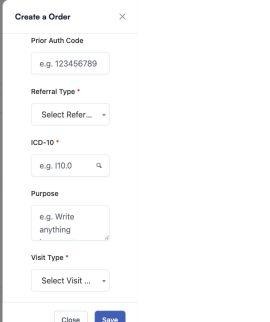
Referral Type, ICD-10, and Visit Type are required. Use Purpose for the clear referral reason.
Step 4 Set The Priority And Add The Referred Note
Under Priority *, select Emergent, Urgent, or Routine according to the visit documentation and approved workflow.
In Referred Note *, explain the referral in detail. Include enough relevant information for Support to answer a specialist's questions without guessing why the patient is being referred.
Complete applicable Custom Fields, including known pre-authorization or logistical information.
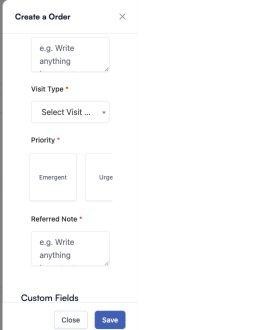
Choose the supported priority and provide a detailed Referred Note before saving.
Step 5 Review And Save As Draft
Confirm the patient and encounter are correct and no referral already exists for the visit.
Confirm Referral Type, ICD-10, Purpose, Visit Type, and Priority are accurate.
Confirm Notes and Referred Note contain enough relevant detail for Support and the specialist.
Confirm Order Status is Draft.
Select Save once. If information is incorrect, incomplete, unauthorized, or unclear, select Close instead.
Confirm the referral appears for the correct patient and encounter with Order Type Referral and Status Draft.
Support staff is the one who moves the order to Pending when a referral provider is added.
👥 Roles & Responsibilities
Provider Or Authorized Staff Member. Creates one complete referral for the visit, adds the correct ICD-10 code and detailed information, and saves it as Draft.
Care Manager Or Support Staff. Reviews Draft referrals, identifies the destination provider, confirms the referral is ready, and changes the status to Pending.
🛠 Troubleshooting
The patient or encounter is missing. Confirm the correct patient record and visit, then refresh once if the visit was created recently. Do not attach the referral to a different encounter. Contact Support if the correct visit remains unavailable.
A required-field message appears. Review the form from the top and complete the first missing field marked with an asterisk. Confirm Referred By, Referral Type, ICD-10, Visit Type, Priority, and Referred Note are complete, then select Save only once more.
The ICD-10 code or referral reason is unclear. Do not guess. Review the visit documentation and confirm the diagnosis or clinical question with the ordering provider.
The referral does not appear after saving. Wait briefly, refresh once, and search the Orders list and patient history before trying again. Do not create another referral until you confirm the first submission is absent.
The provider has not been identified. Leave the referral in Draft. The care manager or Support staff changes it to Pending only after the destination provider is confirmed.
A duplicate referral was created. Do not create another referral or delete records unless your role is authorized. Contact Support with the patient ID, encounter number, and both order numbers.
✅ Completion Check
☐ One referral exists for the visit, with no duplicate order.
☐ The referral is attached to the correct patient and encounter.
☐ Referral Type, ICD-10, Purpose, Visit Type, and Priority are correct.
☐ Notes and Referred Note provide enough relevant detail for Support and the specialist.
☐ The initial referral was saved as Draft and appears in the Orders list or patient record.
☐ The referral remains Draft until the destination provider is identified.
☐ The care manager or Support staff changes the referral to Pending only after the destination provider is confirmed.
Comments (0)