
When working the coffee bar, we will also be responsible for checking in a Patient for their visit. This article is intended to help you understand how we will handle Patient intake for walk-in Patients. Look below at the some of the necessary steps when checking in a walk in Patient.
📚Resources Needed
🚀 Tips & Tricks
- We will want to Patients to scan the qr code and get setup in the app. They can do all intake and onboarding through the app.
- A Patient is emailed 15 min before to collect copay. They don’t always do that so we have to watch this.
- We need to collect any outstanding copay before changing status to arrived.
- Patients with the Member plan get a free drink via their Patient app. Patients who do not have a plan get half off by using the Patient discount code.
-
The color of dot after Patient name tells us if they have completed the intake.
- Orange = No
- Purple = Yes, not confirmed
- None = Yes, and confirmed
-
The video icon before the appointment time means it's a telehealth visit. No camera means it's an in-person visit, and they will be coming to the clinic.
👋 First Words at the Counter
When someone approaches the counter:
- Make eye contact
- Smile
- Stand upright with open posture
- Give them your full attention
Standard Opening (For Everyone):
“Hi there! What can I get started for you today?”
Do not assume they are a Patient.
❓ When a Patient Walks In for a Visit
Since we are an urgent care as well, we will be receiving walk in Patients. A walk in Patient, if they are not in the system, they need to download the app and complete the new
- When they first begin talking we want to be there for them. Anyone who is walking in more than likely does not feel good and needs care pretty quick. We should definitely keep that in mind at all times.
- We will need to gather the intake from the Patient. The best way to do this would be to guide them to scan the QR code, download the app, and complete the intake steps. When they are done, have them come back up so you can get them on the schedule. The intake steps include the following:
- Create an account
- Sign consents
- Upload insurance
- Card on file
- You will be able to see they have completed everything by seeing the purple dot next to their name.
⚠️ Patients are able to book the appointment as well through the Patient app. They may just have some limitations because there is no Walk In feature on mobile. They are just able to book the appointment with an available time slot.
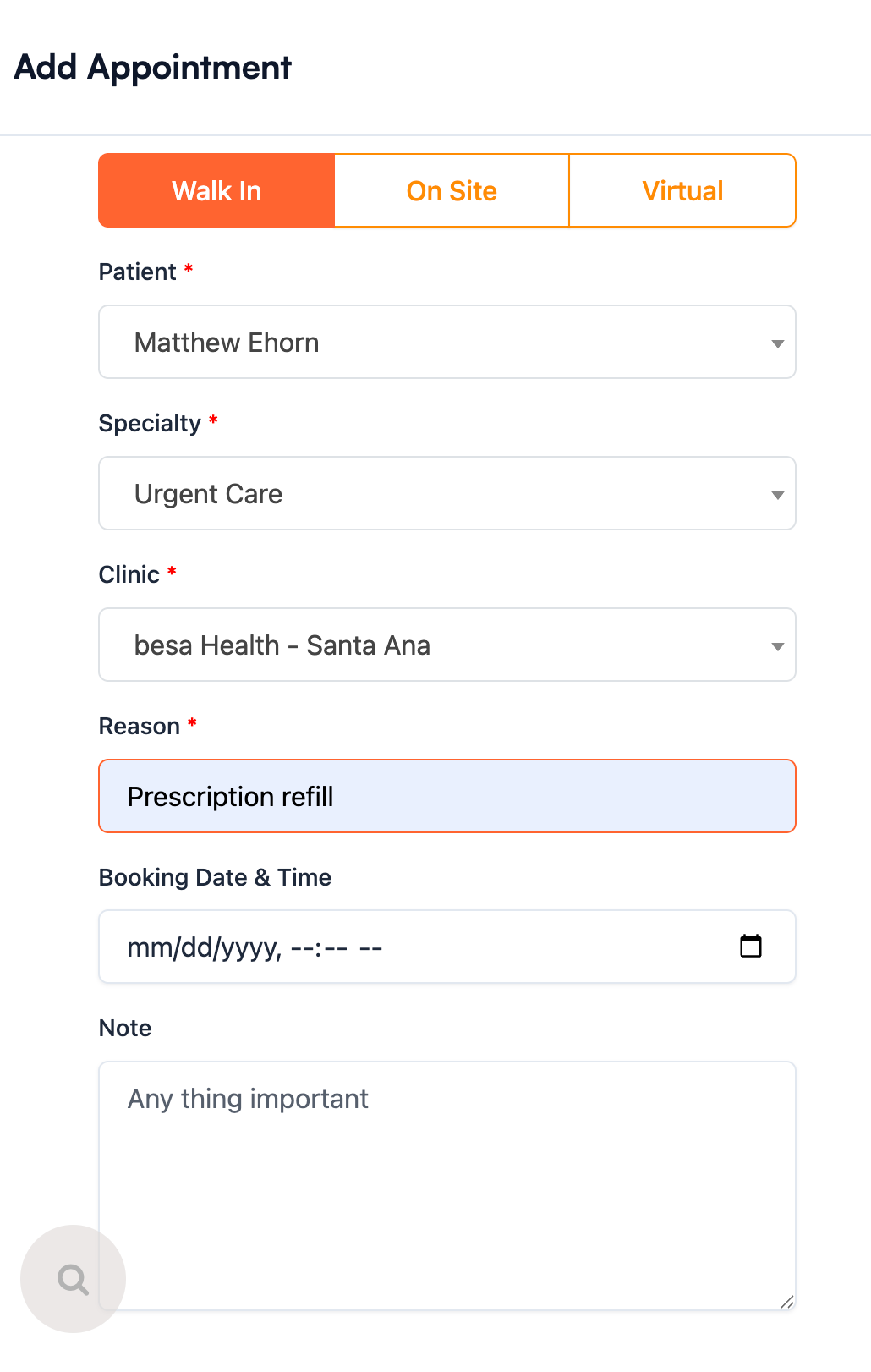
- Add the Patient appointment by clicking Add > Appointment
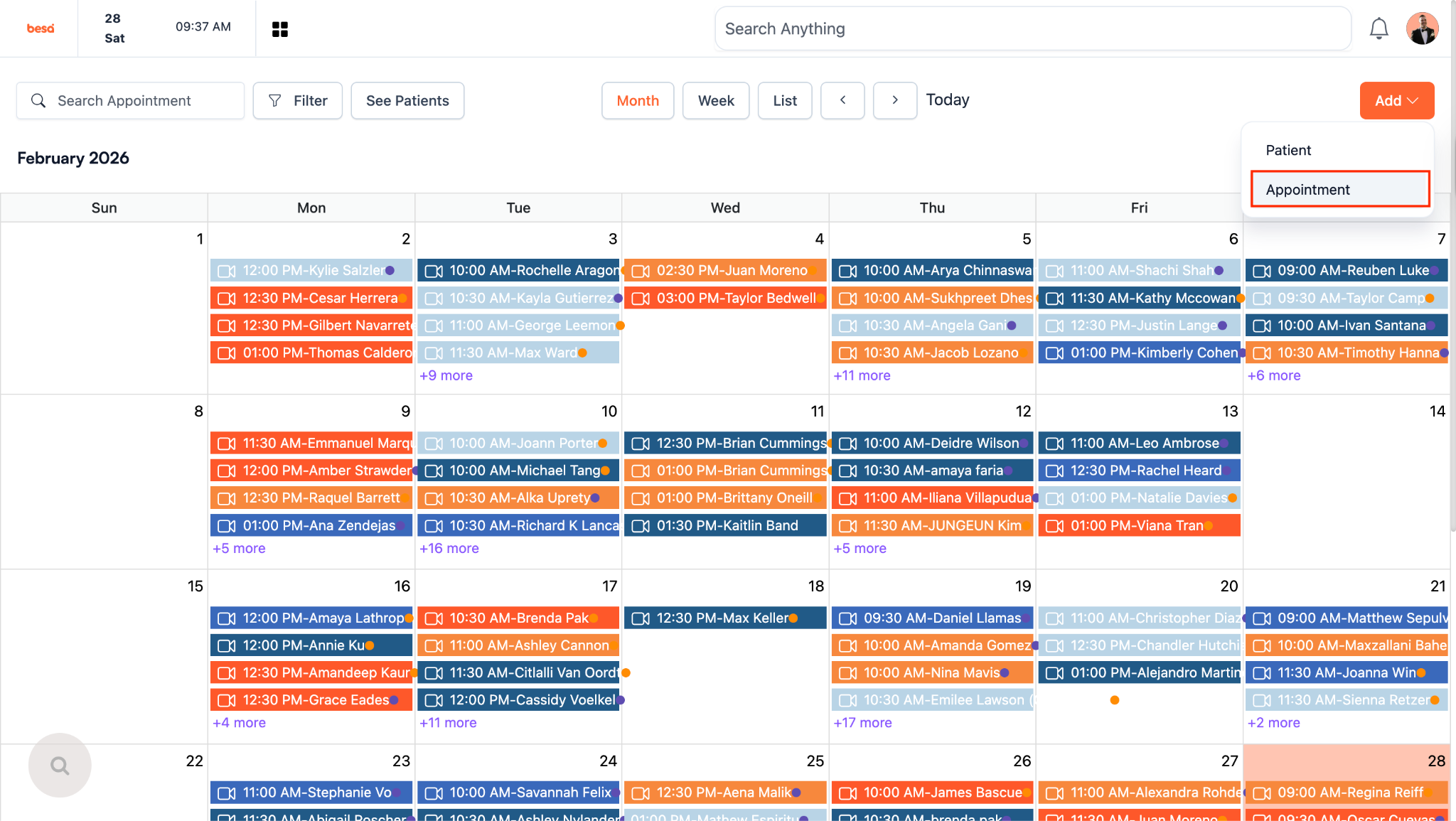
- The appointment form will pop up
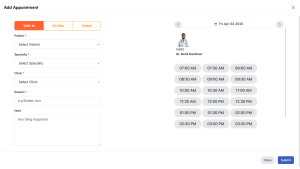
- On the appointment pop up, you'll need to pick what kind of appointment it is (Walk In)
- Search the Patient Name, and select the Patient.
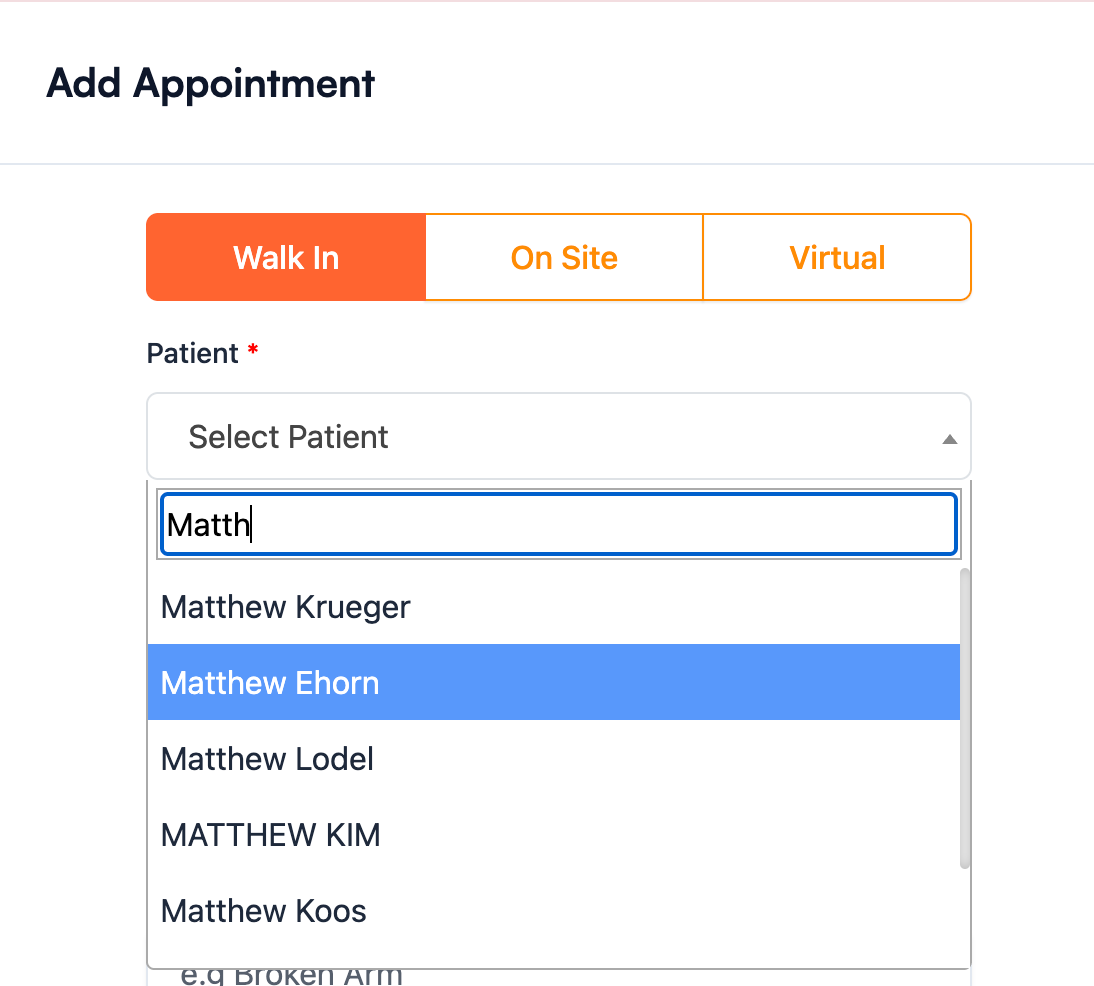
- Speciality listed will always be: Urgent Care
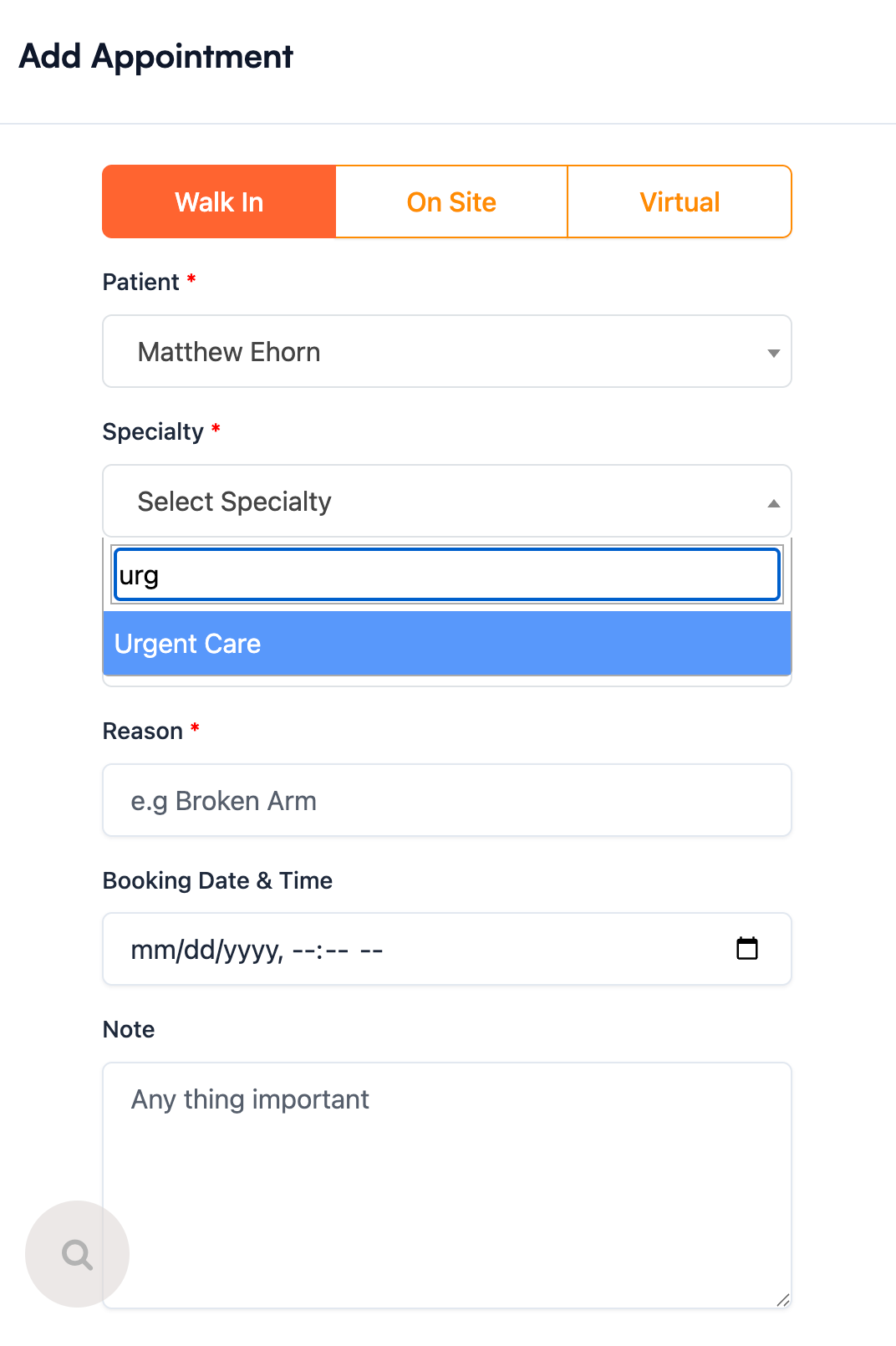
- The clinic will be besa Health - Santa Ana
- The reason is the same as the Chief Complaint. It is why the Patient is walking in to be treated in the first place.
-
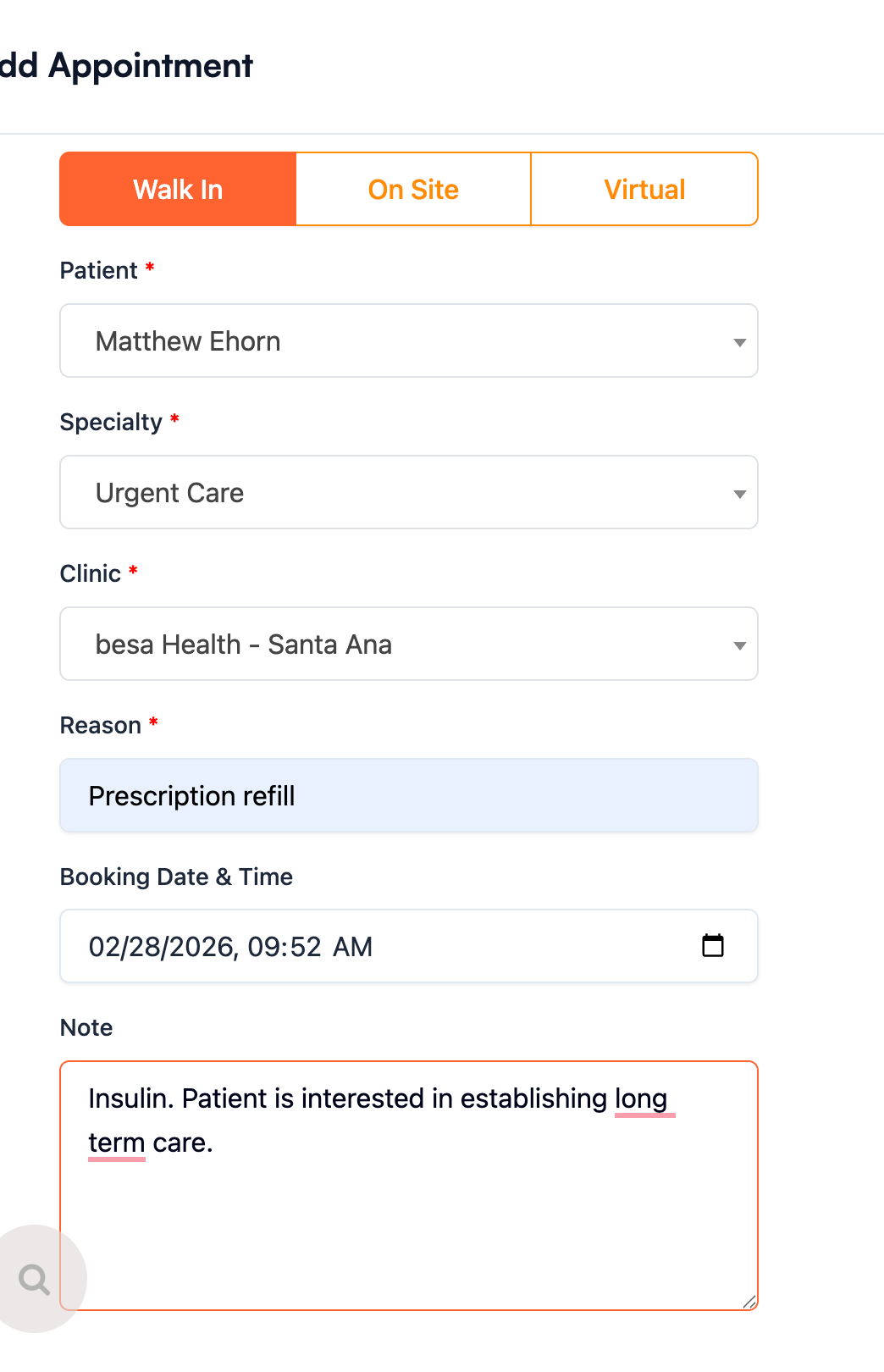
Booking date & time should be that moment. That allows us to keep track of how long they wait to be seen.
- The notes section is something that you think may be important for the provider to know before they see the Patient. This note only goes to the provider. It does not go to the Patient.
- No matter what the Patient will have a copay or deductible deposit that they need to pay. Once you get that booked, let them know that they will see it listed there in the appointment details on the app. They can access this by clicking on the appointment card from their homepage.
- You can also collect the copay by following the Collect Copay Guide.
- Offer them something to drink and let them know that someone will call them in the exam room as soon as the provider is ready.
⚠️ Remember that Patients get half off drinks!
If you can, also advise them to click around and get familiar with the Patient app while they wait. That is a tremendous tool for them. They will also soon get a message from their care manager and that is their partner in their healthcare journey.
Comments (0)