
Below are several key updates, adjustments, and reminders to help ensure the team stays aligned and informed. If you have any further questions, feel free to comment below.
Telehealth Attestation
All telehealth visits need to have the telehealth attestation at the top of the encounter note. Here is the text needed:
"Telehealth Attestation:
This visit was conducted via a secure HIPAA-compliant telehealth platform. Patient identity was verified, and verbal consent for telehealth was obtained. Encounter limitations acknowledged due to the remote format. Patient informed that AI scribe is used for documentation and agreed to audio recording."
Orders entered into EHR
All orders need to be entered into the EHR and Patient record. This includes labs, medications, etc.
Order Status
When creating an order, the status will automatically be Draft. This is to help ensure everything has been finished before the Patient receives a notification and a task in their app (On status Pending). The draft status is to be used as a placeholder for what may still need to be done. Here are the requirements depending on the order type:
- Task - Nothing required. Tasks can be created and added to Pending status.
- Labs - Labs should be in draft until the order reference number has been added to the order note. Then it can be changed to Pending status.
- Images - Images should be in draft until the image order has been placed successfully. In the case of Radnet, make sure to select "Email patient appointment link"
- Medication - Medications should be in draft until the prescription has been sent to their local pharmacy. For South Gate Rose delivery prescriptions, the status will be Pending. Please note, we will be providing all providers with login credentials to send eRx orders.
- Referral - Referrals should always be in draft. These orders will not move to pending until the Patient has received the referred provider and the referred provider has received the Patient's info.
No-show Appointments
For all Patients that no-show their appointment, we need to mark them as a no-show on the different platforms. For the besa Health EHR, we automatically change the status of the visit to No Show if they do not enter the waiting room within 10 minutes of their appointment time. For visits that come through Zocdoc, we need to manually mark them as a no-show.
To do this, open the appointment > Scroll down to the bottom > and click Mark as no show
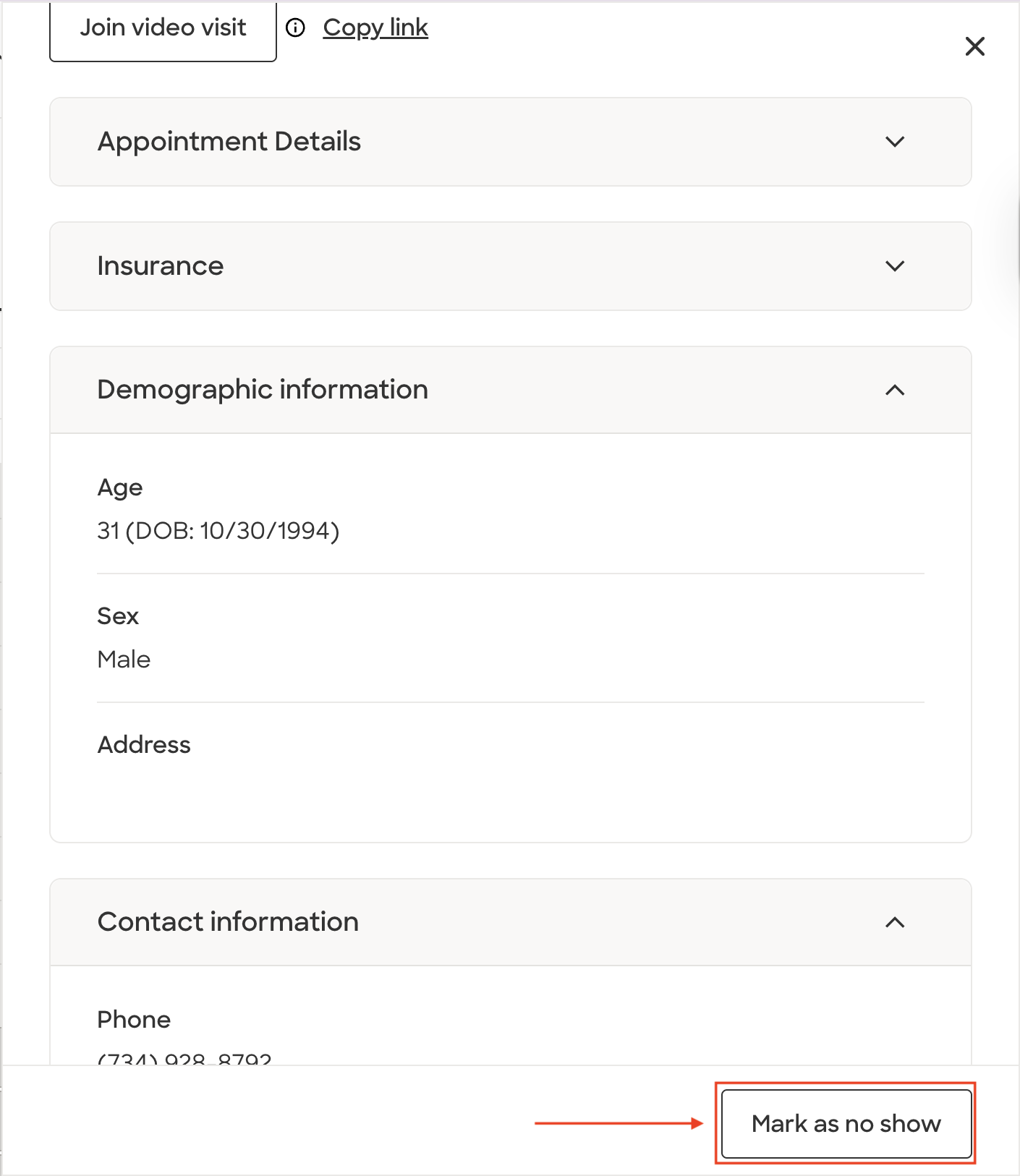
This will help us to maintain proper records of visits and listing fees.
Comments (0)