
Without us collecting payments for the work we do, we will never be able to achieve our goal and fight for our mission. This process is intended to help all staff understand how to do certain tasks and actions within the besa EHR in relation to collecting payment. Remember, everything we do is to improve the Patient experience and sometimes that means making our lives a little bit easier. Take a look below on how we create payments.
📚Resources Needed
🚀 Tips & Tricks
- There are several different types of payments and how we handle them.
- This article is just going to cover processing a payment and nothing more.
📘 Instructions
This article is intended to help you understand how to create a payment. In most if not all cases you will not have to do this because we have logic for how a copay is collected and services rendered, but there may be cases where we have to just process a payment.
- Login to besa EHR using your credentials.
- Go to the billing page.

- Click on the + Payment button. This can be found on the encounters tab, as well as the invoices tab.
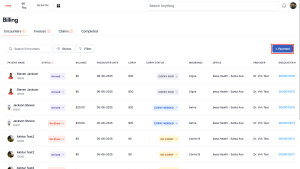
- The payment pop-up will slide in and you will begin to be able to fill out the form to process a payment.

- All fields with a * mean they are required.
- When you enter in the Patients name, if they have payment methods on file you will see them here.
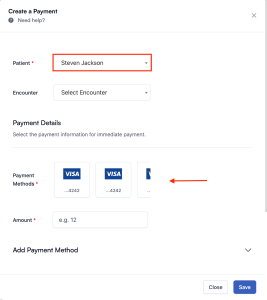
- If you select an encounter than you will only be able to charge what has been applied in the encounter. To charge whatever you may need to, leave the encounter field blank.
- If you need to add a payment method for payment, please click the dropdown and complete the form to add a card on file. When all information has been inputted, click + Add Payment Method. This will save the card on file.

- To apply the payment, click on the card that the Patient wants to use for payment. Please confirm with them prior to charging them if the card on file is good to charge.
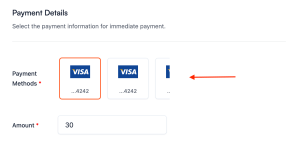
- Apply whatever amount that you need to charge.
- When you have a card and added the amount, click Save and the payment will process.
Here is a video to help you better understand.
If you have any questions or would like more information, please reach out to support.
Comments (0)