
This process is intended to help all staff understand how to do certain tasks and action within the besa EHR in relation to creating an order. Remember, everything we do is to improve the Patient experience. Take a look below on how to create different orders. Remember, what we do will change someone's life.
📚Resources Needed
- besa EHR
- Patient record
🚀 Tips & Tricks
- You can create an order for a Patient in several different areas. The Patient detail page, Patients page, Orders page and Encounter page.
- The Referral that shows as an option to send to is added through the Referral Providers tab of the Settings.
- The suppliers that appear in the order forms are created in the settings by the admin team. If you need to add a supplier for whatever reason please contact Provider Support through our Messages page or use the chat widget inside the platform.
- Any order with status Pending triggers and email, message, prompt for the receiving party, Patient, and support team.
- You can create the following order types: Lab, Image, Medication, Referral, and Task.
📘 Instructions
This will be from the Order page. Once you know this, you’ll be able to perform this on all the other areas that a Create Order is present.
- Login to besa EHR using your credentials.
- Click on the Orders icon

- When on the orders page, click + Add Order

- The form will slide in from the right side. The order number will be auto-populated. Do not edit or change that.
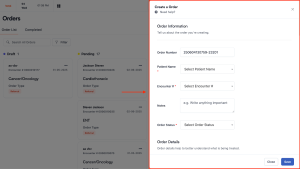
- All fields with a * mean they are required.
- Fill in the Patient Name, Encounter, and Status. The encounter will most likely be the most recent encounter. The status will always be Pending if you are trying to send this order to the Referred Provider and Patient.
If you like, you can save it as a Draft first to ensure all information is correct. Then change to Pending.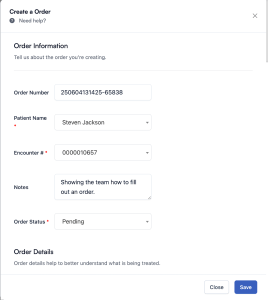
- There are a lot of different Order Types. All of which trigger a different action. When selected, their respective fields will appear below.

- Select whichever order type you would like to make. For this example I will make a provider referral. To do this select Referral
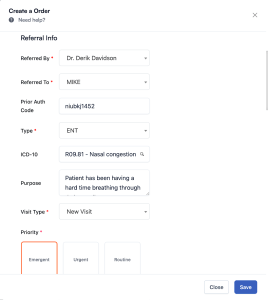
- Complete all fields that would help the Patient and referring provider know what needs to be done.
- In the Physician field, it should be the Primary Care Provider, or the Midlevel that treated the Patient.
- Remember that the Suppliers and Referred Providers must be added in the Settings by an admin in order for them to appear in the list. In the case of a referred provider, please view the list of preferred referral providers for reference.
- Notes are seen by the Patient and the referred provider. Put something of importance there for clarification and understanding.
- When the referral, lab, Rx, Image request is created, the recipient will receive a message from us which has the order doc and ability to get access to Patient record to view and complete their next action.

-
The referred provider or supplier should be uploading all information to our EHR. If they did not create an account with us, they will send over the encounter info and we will need to add them.
Here is a video to help you better understand.
If you have any questions or would like more information, please reach out to support.
Comments (0)