
Quick Guide to Orders
This guide is here to help you better understand how the orders page with the besa EHR works. The order page is where a lot of actions are performed so be sure to understand some of the key details mentioned below.
📚Resources Needed
- besa EHR
- Patient record
🚀 Tips & Tricks
- You can create an order for a Patient in several different areas. The Patient detail page, Patients page, Orders page and Encounter page.
- Any order with status Pending triggers and email, message, prompt for the receiving party, Patient, and support team.
- Through the orders page, you can send a Patient a task to do whatever you may need them to do. They receive the Push Notification and instructions you have added to the order.
🔑 Key Points
You must understand these things in order to properly complete order actions.
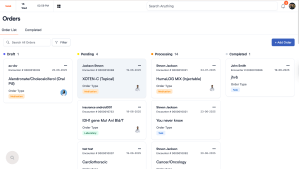
- Orders have the following status’s:
- Draft - The record is kept in the platform. Perfect for getting an order started, but not yet ready to send out.
- Pending - The Patient receives a push notification regarding this, and the supplier or referred provider receives an email with the order details.
- Processing - This means the action has been completed by the Patient if they needed to do something. This means we need to confirm or gather the information.
- Completed - Wipe our hands clean and off to the next order.
- Here is the email a supplier or a referred provider receives.

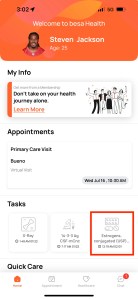
- Here is the push notification that a Patient receives. All orders have an action for the Patient.

- The suppliers that appear in the order forms are created in the settings by the admin team. If you need to add a supplier for whatever reason please contact Provider Support through our Messages page or use the chat widget inside the platform.
- The Referral that shows as an option to send to is added through the Referral Providers tab of the Settings.
-
Click on the 3 dots to see order options.

Comments (0)