
All items related to the Patient can be found in their Patient detail page. View their medical records, medical history, create a medical record, and begin an encounter all from this page.
📚Resources Needed
🚀 Tips & Tricks
- View Patient record details and create anything in the Patient records.
- Get there through the search, or the Patients page.
📘 Instructions
- Login to besa EHR using your credentials.
- From the menu icon or dashboard, select Patients

- Here you will see all of the Patient information. Scroll down and select which Patient you will like to see records of.
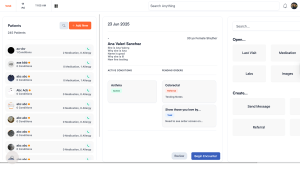
- To get to the Patient details, click Review in the Patient card.
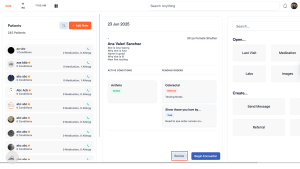
-
You can also access the Patient detail by, from any page, search the Patient name or Patient ID in the search box. Click on their name to get to their detail page.

-
Here is what the Patient detail page looks like

-
Notes are a very important part in caring for a Patient. We should add anything that we feel is important for everyone to know. Do not just think of this as medically related items as we already document that in the system. Think of this as a way someone who is just meeting the Patient can create some kind of bond or connection. Here’s a quick example of something we would want to add in this notes area.

- Scroll down to get the Patient medical information. To add anything, click on the + New icon in the respective area. When you do this, the form pop-up will slide in and you’ll be able to create the record.

- To view details and edit a record, simply click on the row and the detail view will appear. You can edit the record by clicking on the 3 dots action icon and select Edit.

- To create a new order for the Patient in the Patient detail page, click on + Add New Order. The create order pop-up will slide in and you can complete all steps just as you do in the Orders page.

- To view and update the Patient medical history, click in the Medical History button and a new page will appear. There you will see everything the Patient filled out when onboarding with out practice.

- To view and update Patient demographics, click in the Demographics button and a new page will appear. There you will see everything the Patient filled out as well as what we have entered while verifying the Patient data. Here you will find things such as:
- Personal identifiers
- Insurance Info
- Payment info
- Much more.

13. To access Patient encounters, click on the Encounters button. You will be able to see all encounters we have had with the Patient, the status of those visits and much more.
14. Of course, you are also able to Begin and Encounter with the Patient here. Please note, that if there is an appointment, that visit will show here. If there is no appointment, it will create a new visit with a new record number.
15. Remember, this page is intended to give you all the Patient information in one easy to navigate page. Let us know what you think.
Here is a video to help you out.
If you have any questions or would like more information, please reach out to support.
Comments (0)