
The messaged page is fairly straight forward so I will not go into the details. The life blood of every relationship is communication. Whether we are messaging one another, a group, or the Patient, what we say and how we say it is so important to a lasting relationship. Take a look at some of the key points below to know how to use the Messages page.
📚Resources Needed
🚀 Tips & Tricks
- You can chat with Patients, Team members, and Groups.
- Video and audio calls can be made to all users on the platform.
- Make sure you pay close attention to who you're messaging so you don’t send a chat that goes to a Patient regarding something they don’t need to see or that is not important to them.
- There are several different areas you can send a message to a Patient. In the Messages page, Patient details page, and the Patients page.
📘 Instructions
- Login to besa EHR using your credentials.
- From the navigation icon or Dashboard, click on the messages card.
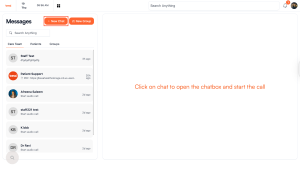
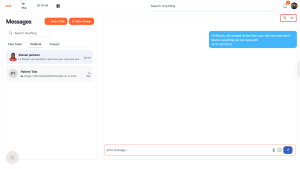
- Here you will see all your message details with all your different chats.

- We have broken down the various areas where chats are based on roles. This is intended to help you not send a message to the wrong person.
- Simply click on any user card to see messages and to send a message or call them.
- To create a new chat, click on the + New Chat button.
- When you click that, the new chat pop-up will slide in.
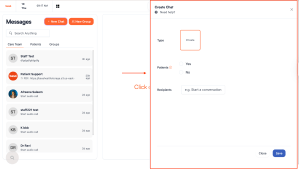
- Complete the form to send a message. Make sure to label whether or not the chat will have a Patient in it.

- Click on the Patient to add them to the chat and press Save.

- The chat will be created and now you are able to send the user a message.
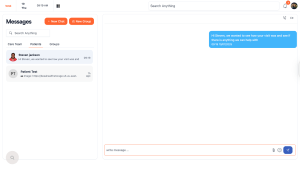
- If you would like to make a video or audio call, click on the respective icon in the top right corner of their chat card.
- The group chat works very similar and should be easy for you to navigate.
If you have any questions or would like more information, please reach out to support.
Comments (0)